Alejandro
Urman
Brand Story Videos
For Founders & Owners
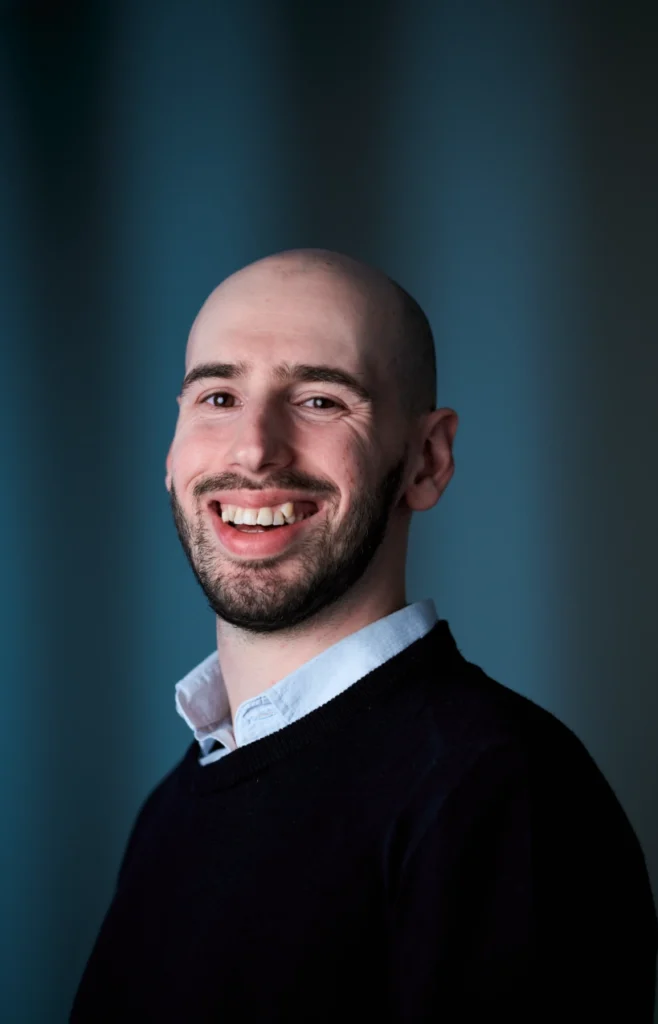
I’m Alejandro.
Based in Sydney, Australia, I create cinematic brand story videos that look and feel like the business you’ve actually built. By pairing textured visuals with clear messaging strategy, I help founders and business owners step in front of the camera with real confidence, telling their story in their actual space, building the kind of trust that turns viewers into customers and clients.
I graduated from the University of Technology Sydney with a Bachelor of Communication, majoring in Media Arts & Production, and I’ve spent the years since turning that into a specific, premium craft. I also hold Digital Foundations certifications from the Media Federation of Australia, so every video I make is shaped with real distribution and audience behaviour in mind, not just how it looks in the edit.
Alongside client work, I run my own online business where I develop and sell specialised DaVinci Resolve video editing tools used by editors around the world and featured in industry news outlets such as NewsShooter and No Film School.
I also present on camera for my own brand regularly, so whether it’s shaping your story beforehand or coaching you through the shoot itself, it comes from real practice, not guesswork, helping you to come across clearly and naturally.
If your business has a story worth telling properly, I’d love to hear about it.


Located in Parramatta within Sydney, Australia.
Please fill in this form with your inquiry.
It looks like you’re on mobile.
This section was crafted with a larger screen in mind.
Please head over to your Desktop to get started.
Can you edit faster than the B-Roll Fade & Finish PRO System?
First, Download the Challenge DaVinci Resolve Project Archive:
Then, follow these simple steps to Import the Project Archive into DaVinci Resolve:
Download & Unzip: Click the download button above and extract the .zip file to your computer. You will see a folder ending in .dra (DaVinci Resolve Archive).
Open the Project Manager: Launch DaVinci Resolve. If you are already in a project, click the Home icon in the bottom right corner to open the Project Manager.
Restore the Archive: Right-click in any empty gray space within the Project Manager window and select “Restore Project Archive…”
Select the Folder: Select the “Take The Challenge.dra” folder and click Open.
Ready to Edit: The project will appear with all the necessary image assets loaded and ready for you to take the challenge.
Then, Choose Your Method below and Start the Stopwatch when you’re ready –
Your final edit time is:
It’s not easy to change how you work, but seeing the results is the first step.
Here is $10 off to help you take the next one.
CHALLENGE10
Use Code at Checkout
Time to Beat
Using the PRO Method: 02:14
Using the FREE Method: 03:18
Using the Native Method: 05:21
For users using only native DaVinci Resolve tools.
Setting up base footage and initial blur transition.
Creating dim transition and preparing first B-Roll.
Adding styling and entrance fade animation.
Final framing and batch applying effects.
For users utilising the free version of the B-Roll Fade & Finish tool.
Setting up base footage and A-Roll tool.
Applying B-Roll tool and framing.
Setting keyframes and extending timeline.
Batch applying effects and final framing.
For users utilising the B-Roll Fade & Finish PRO System.
Setting up base footage and PRO A-Roll tool.
Applying PRO B-Roll tool and framing.
Setting movement and extending timeline.
Batch applying effects and final framing.