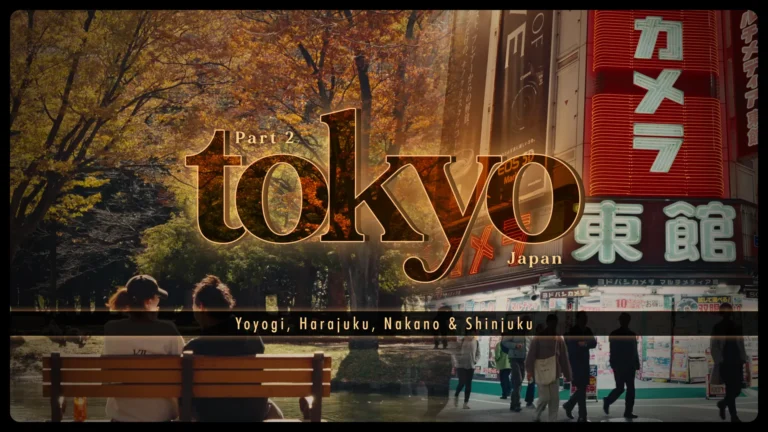
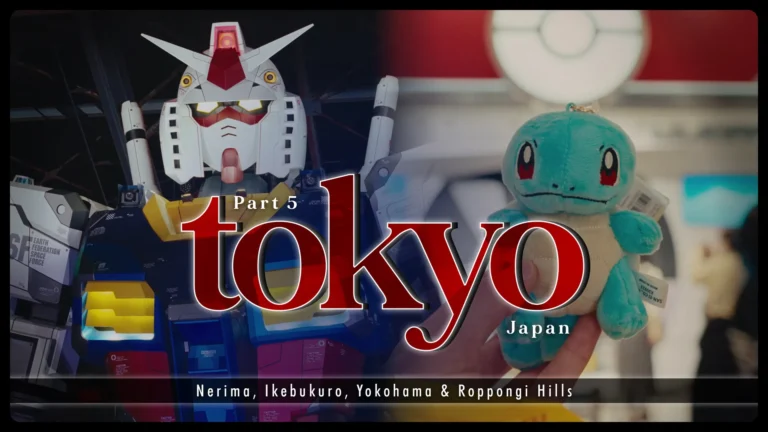
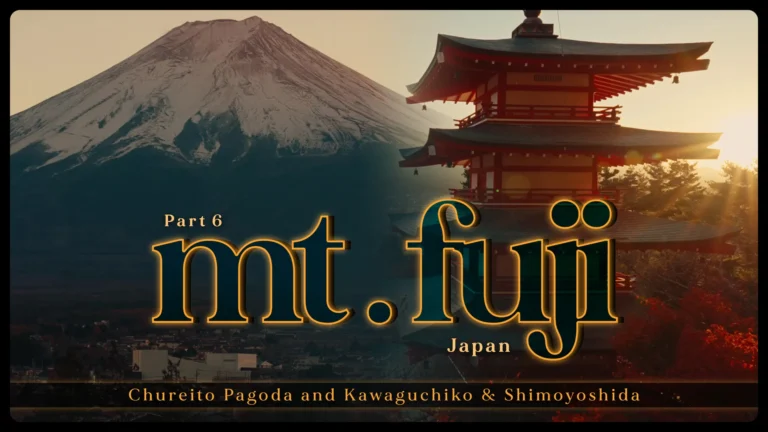
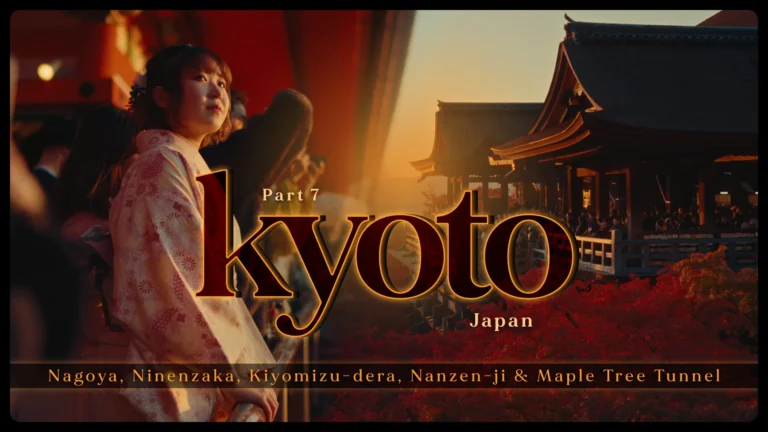
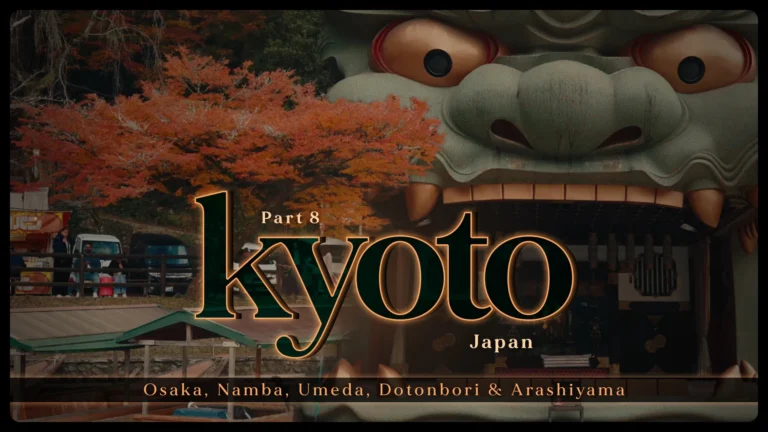
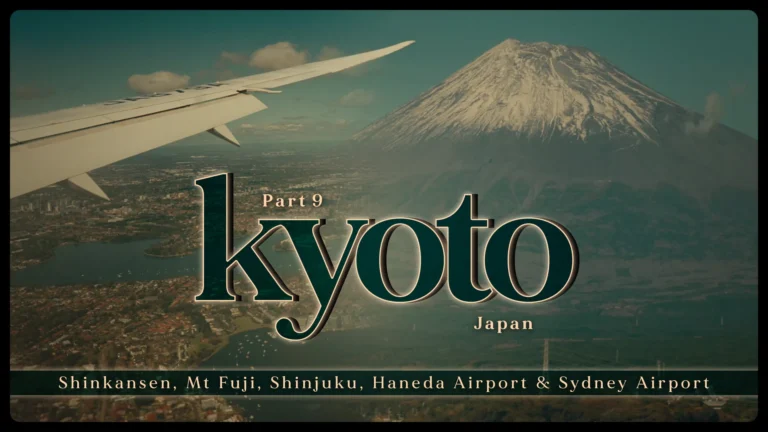
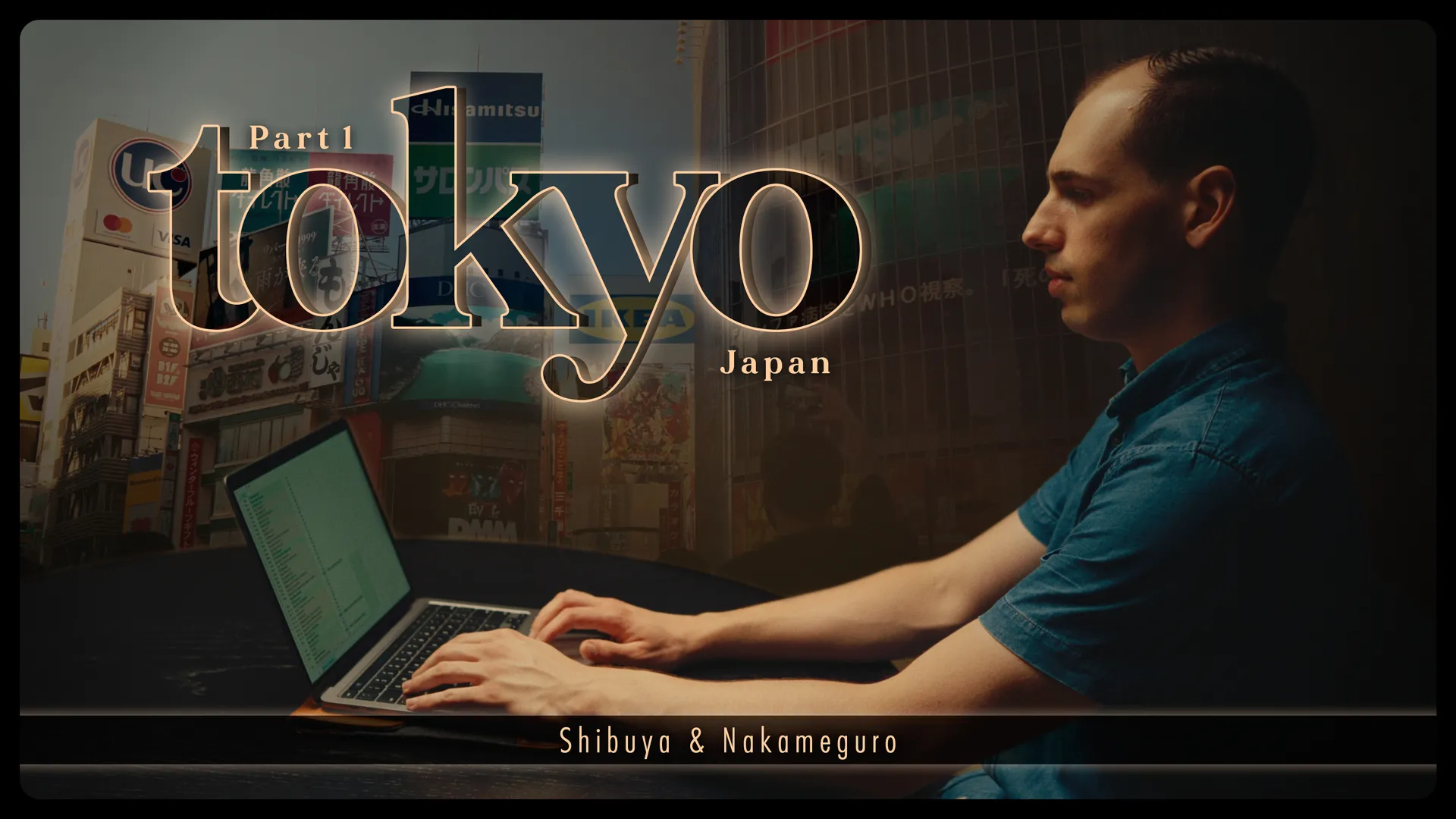
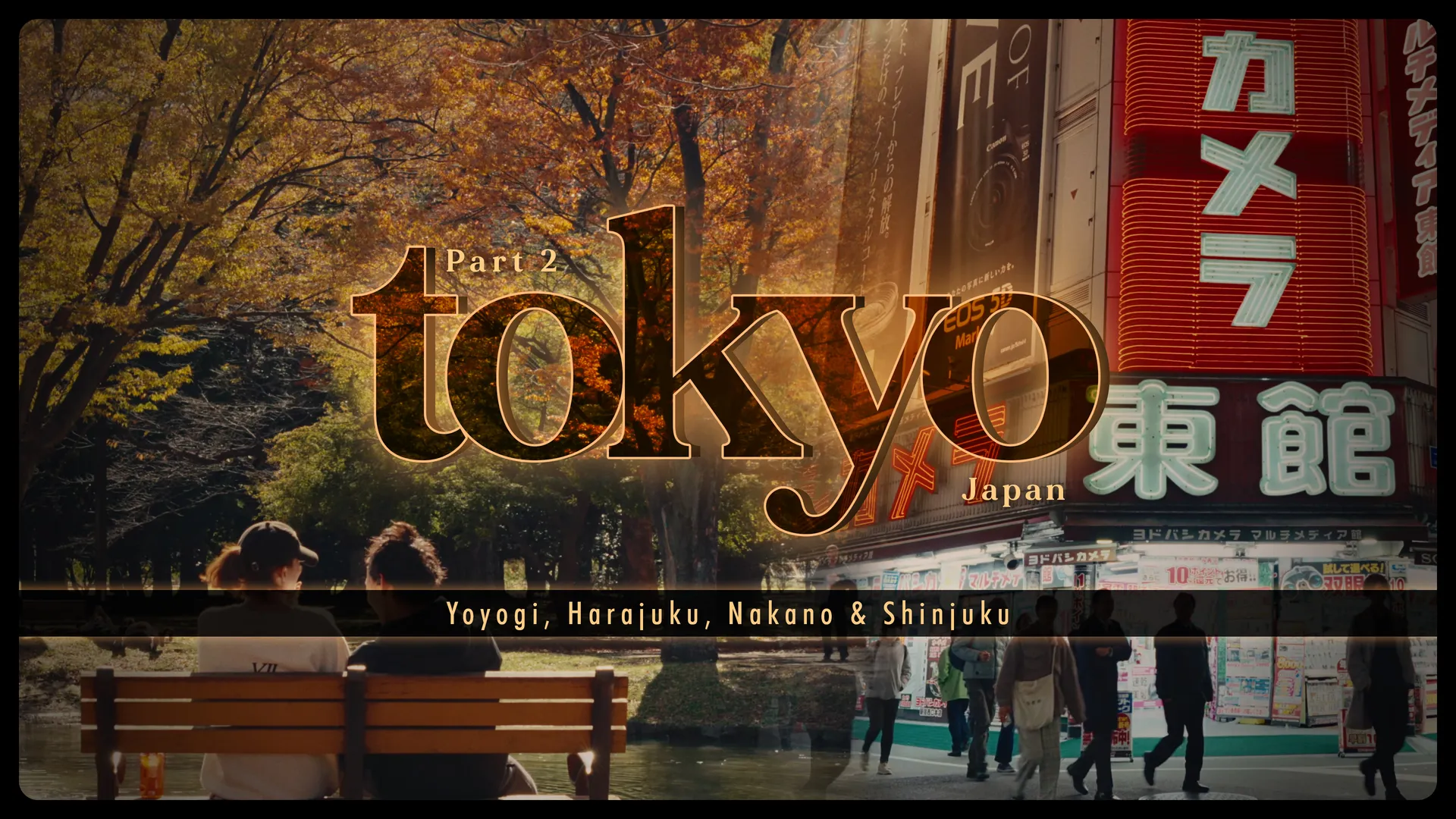
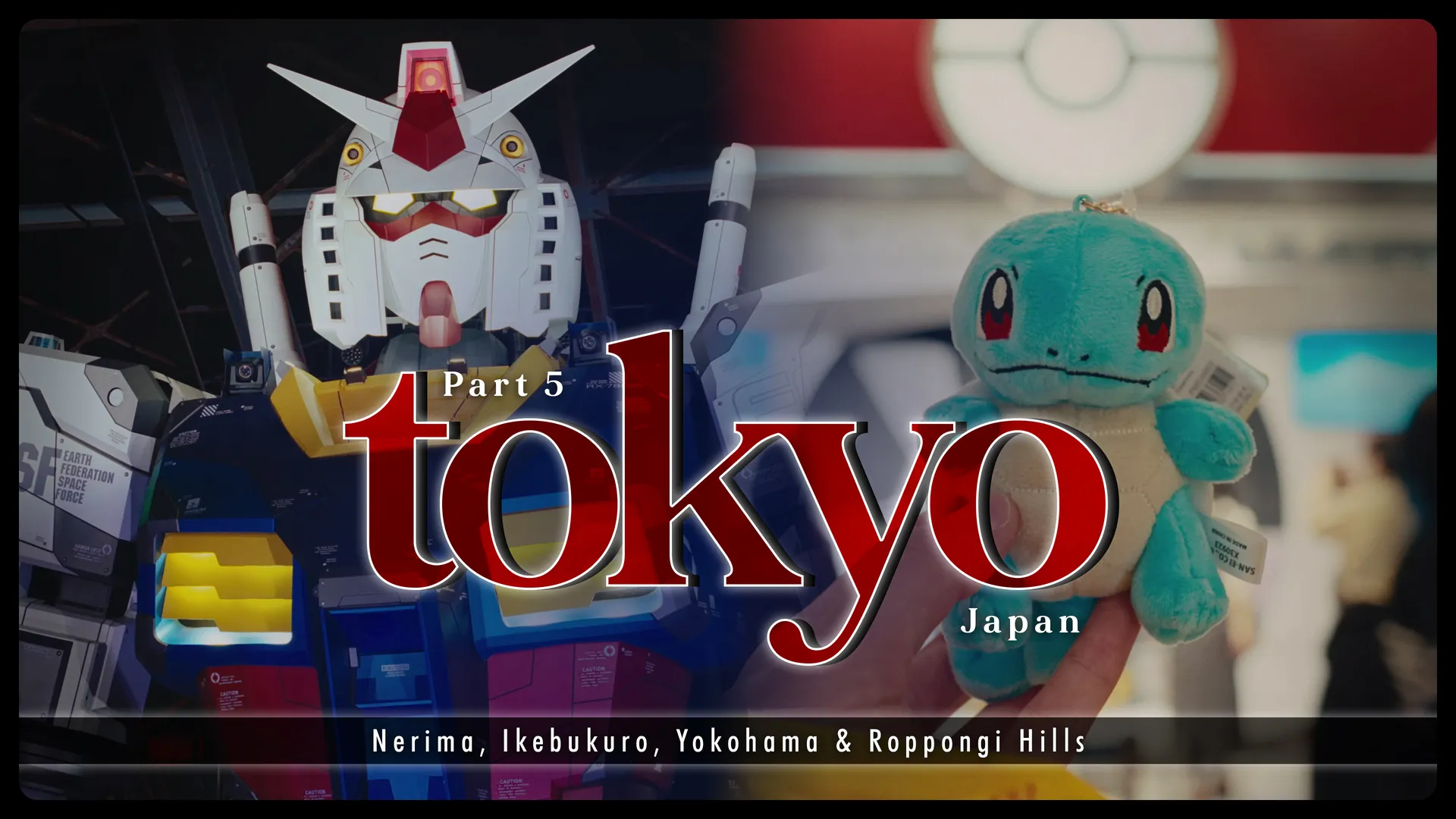
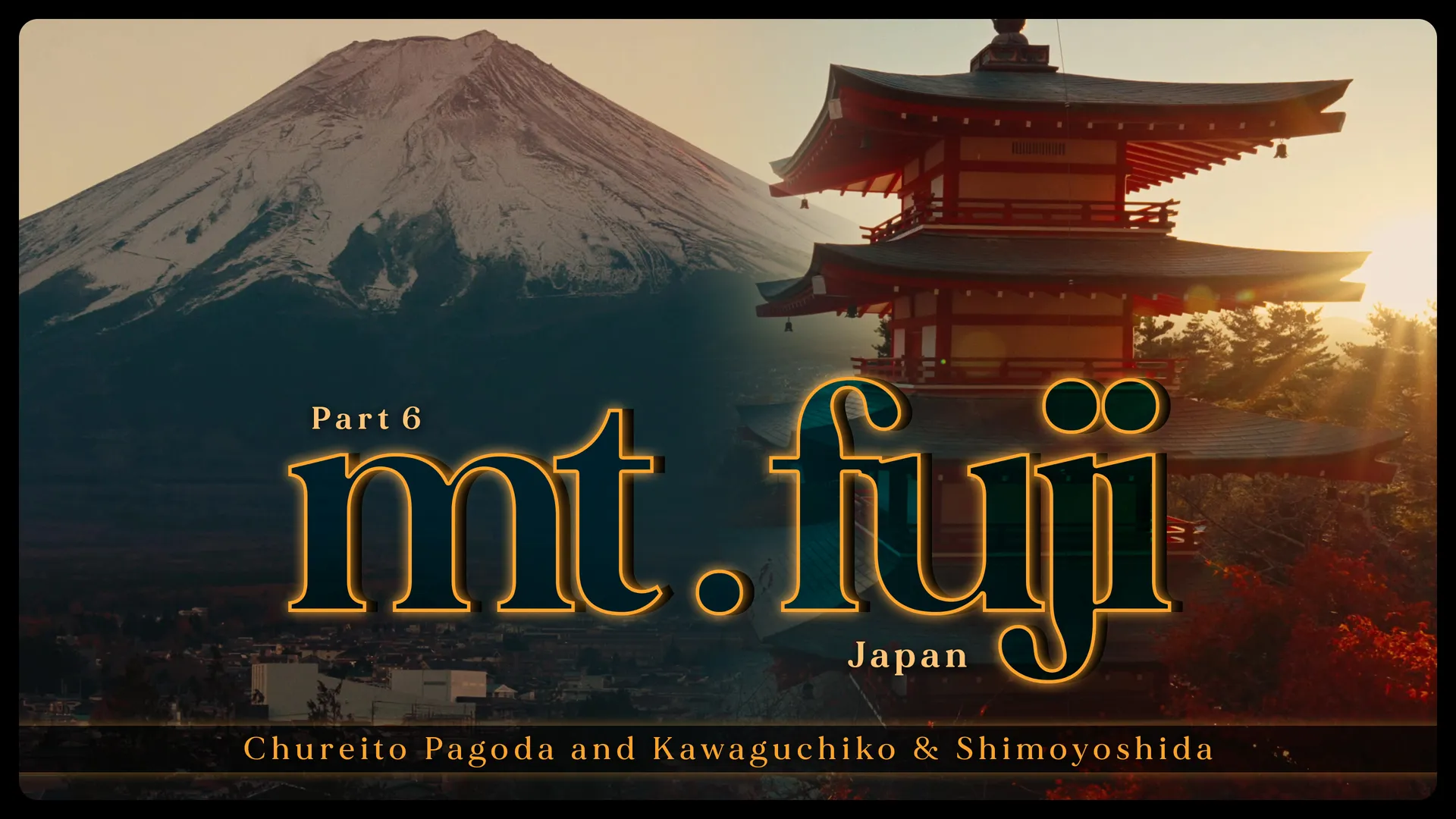
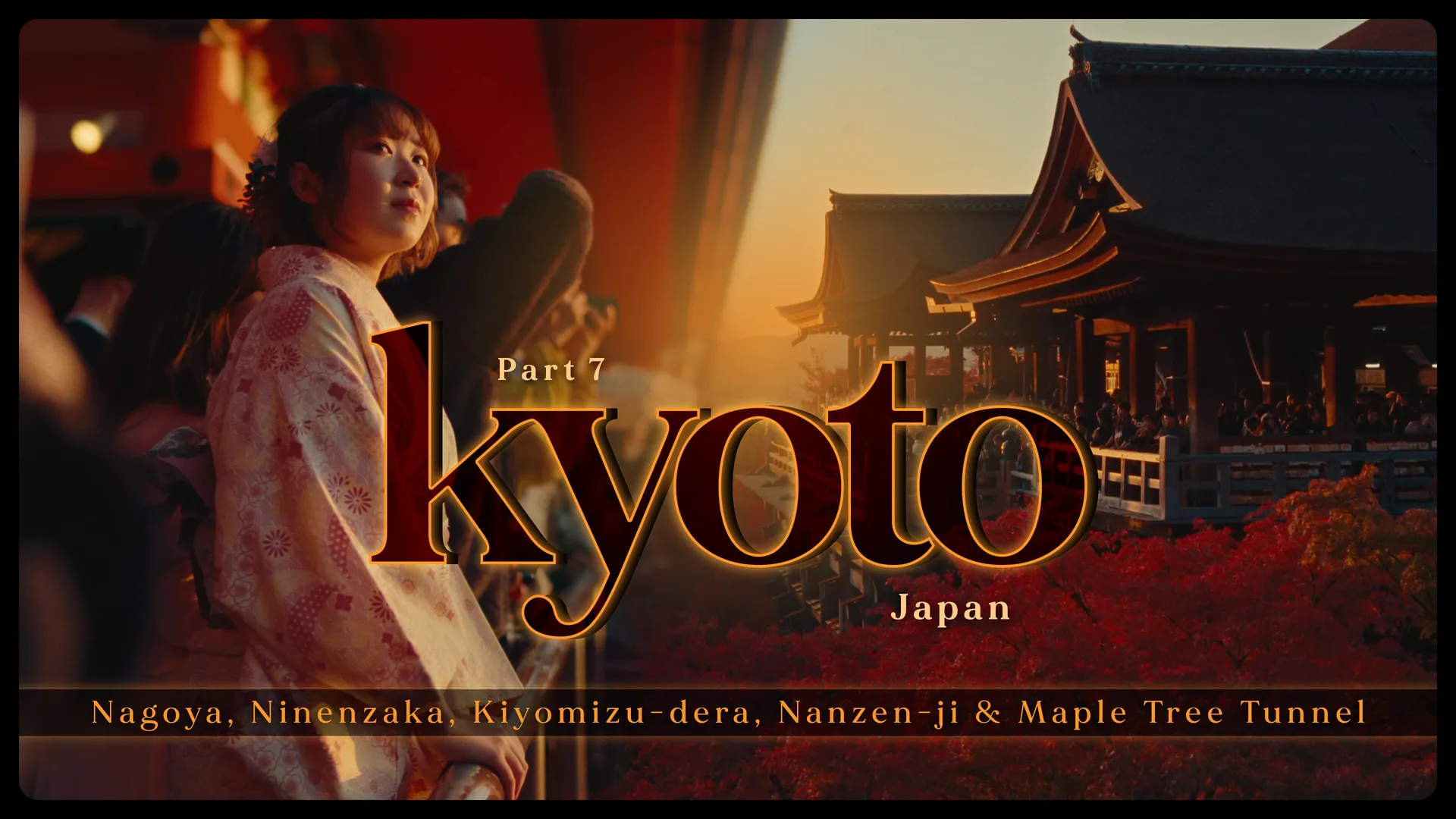
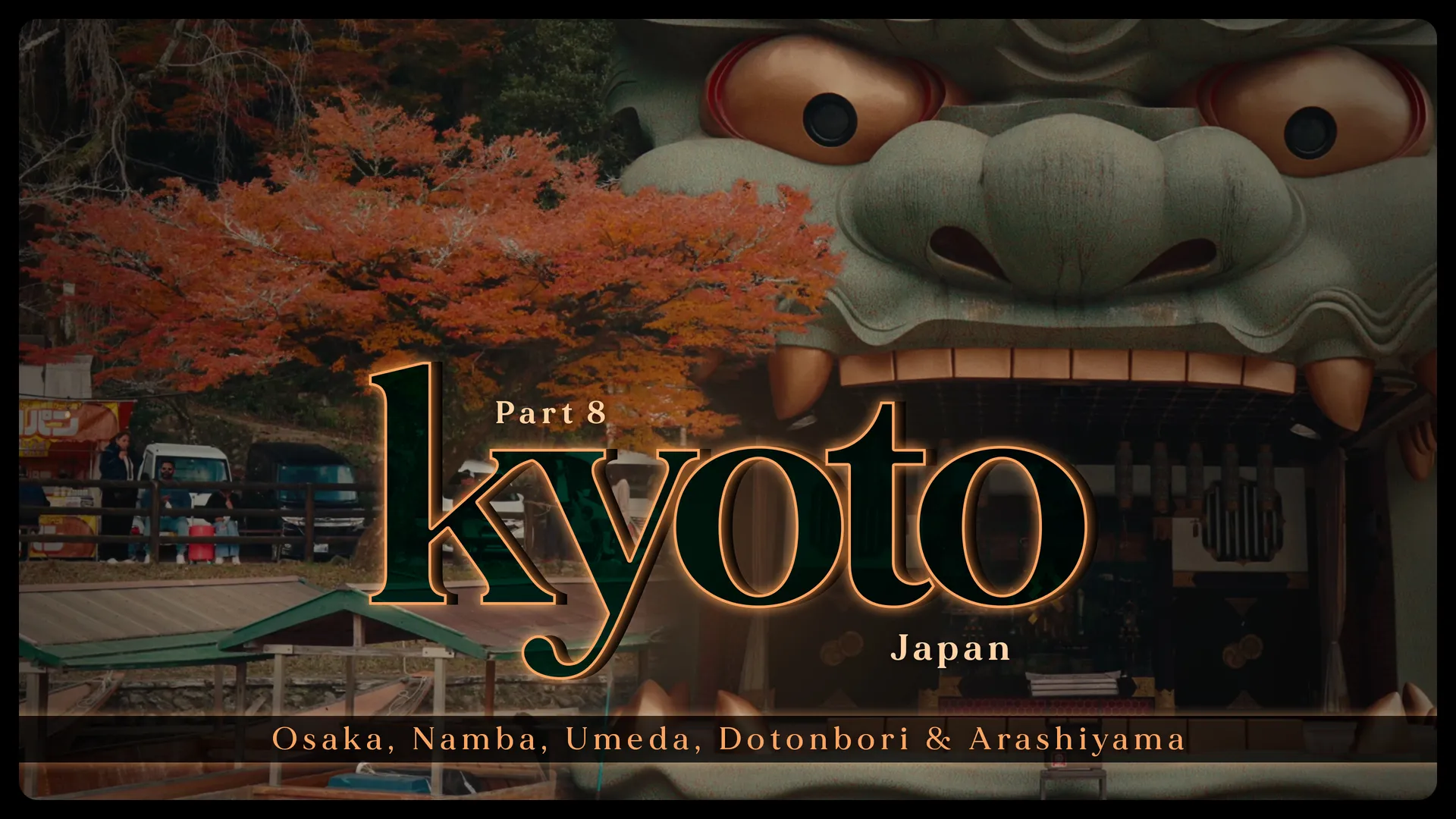
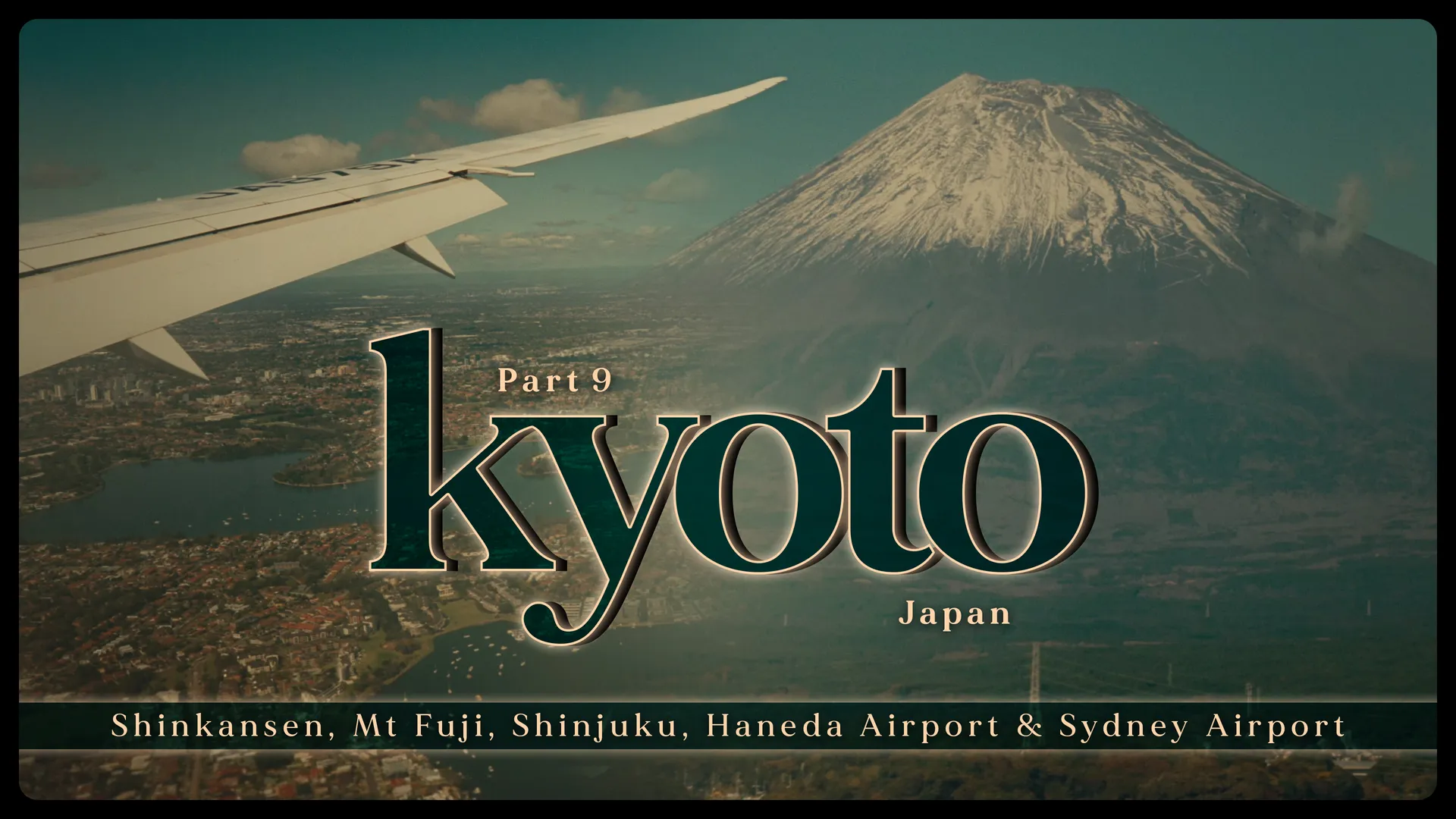
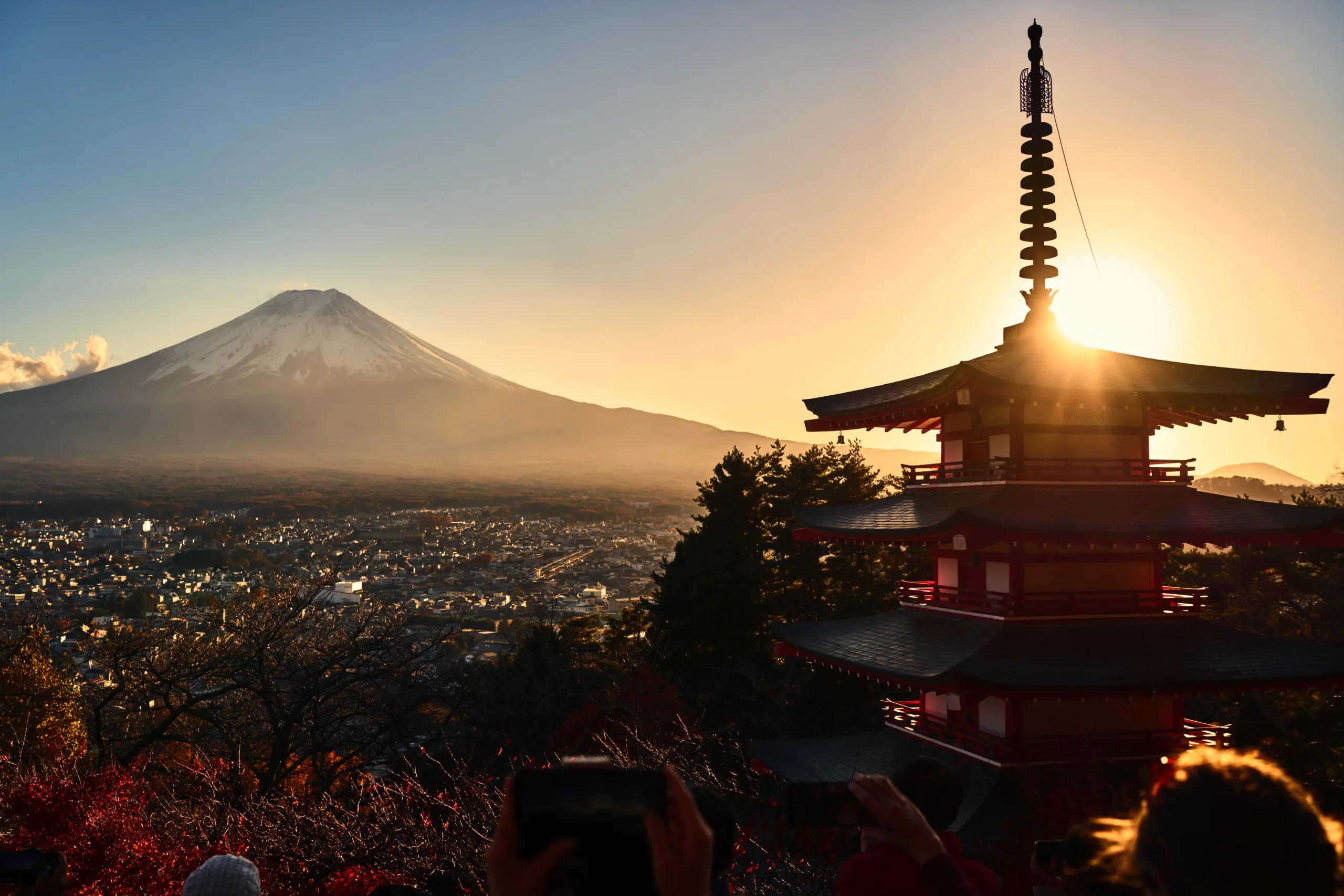
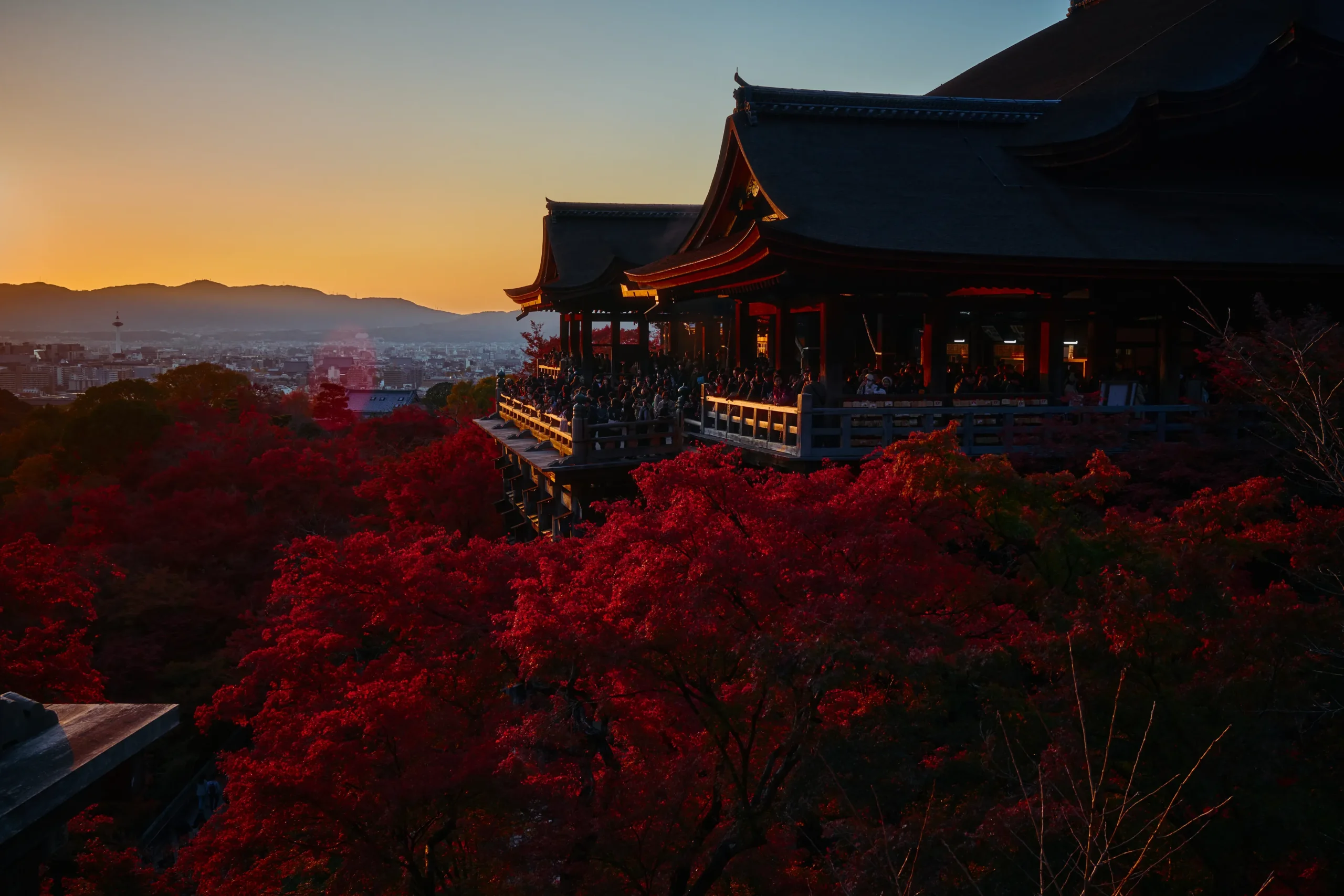
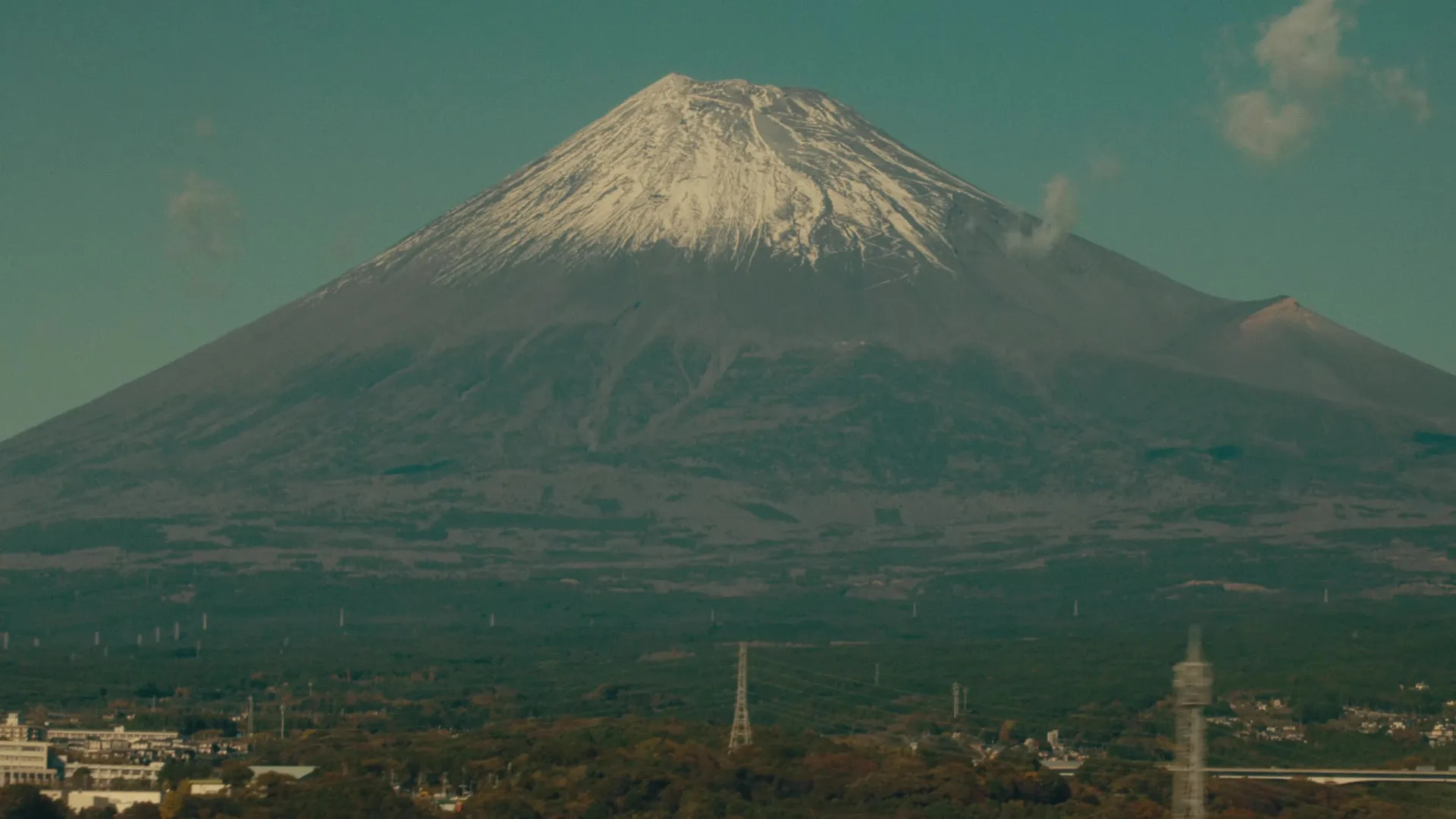
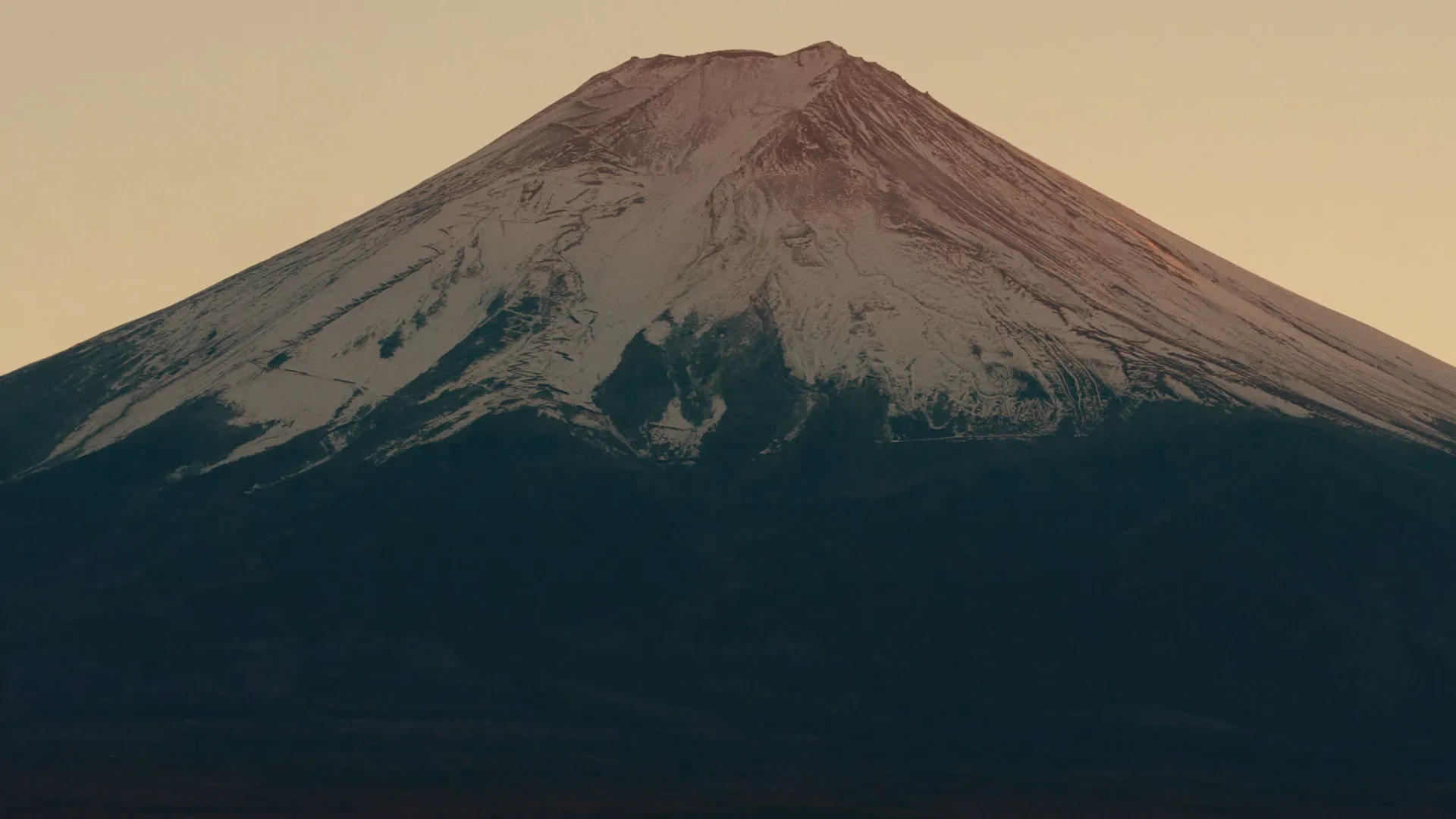
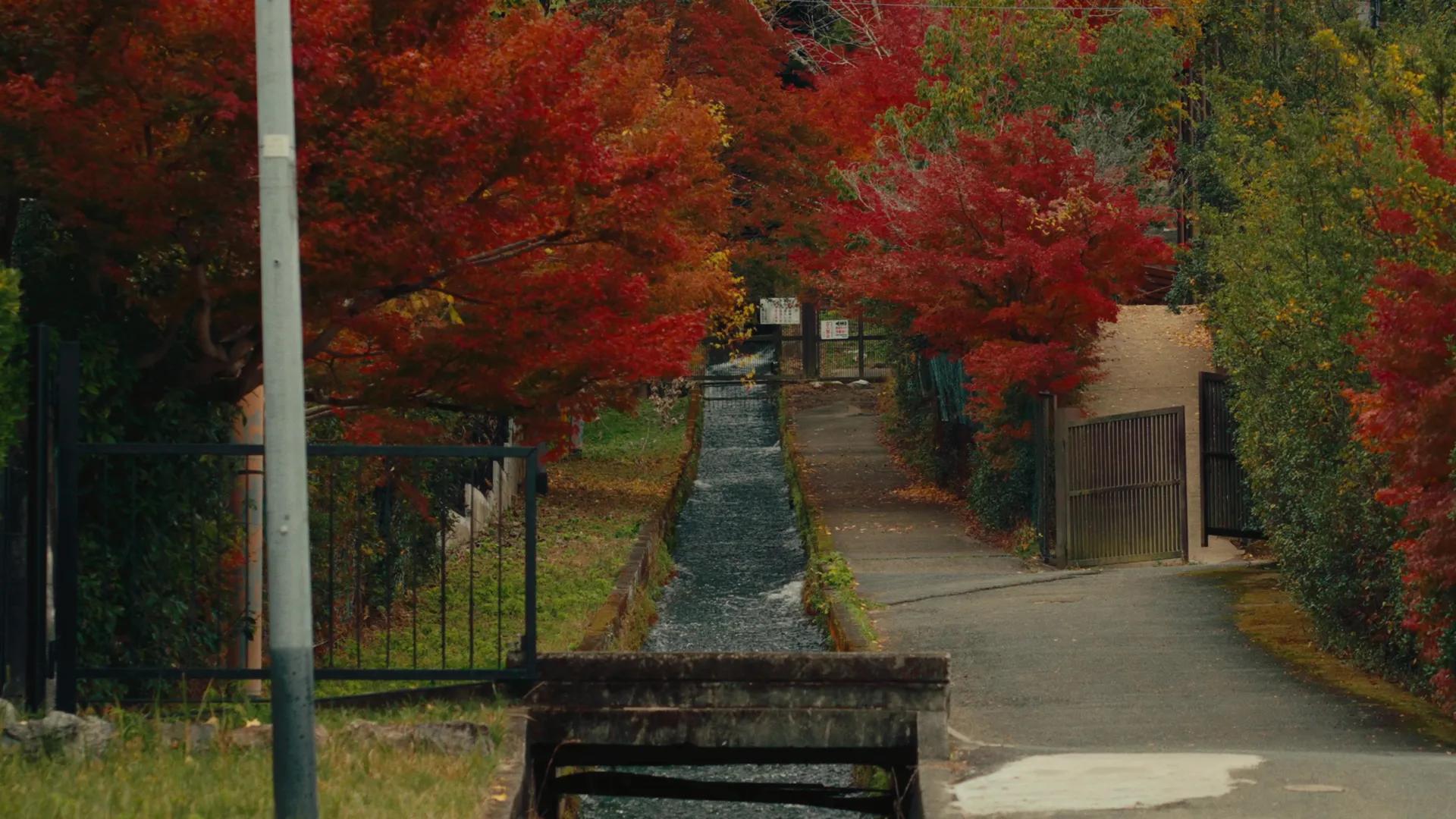
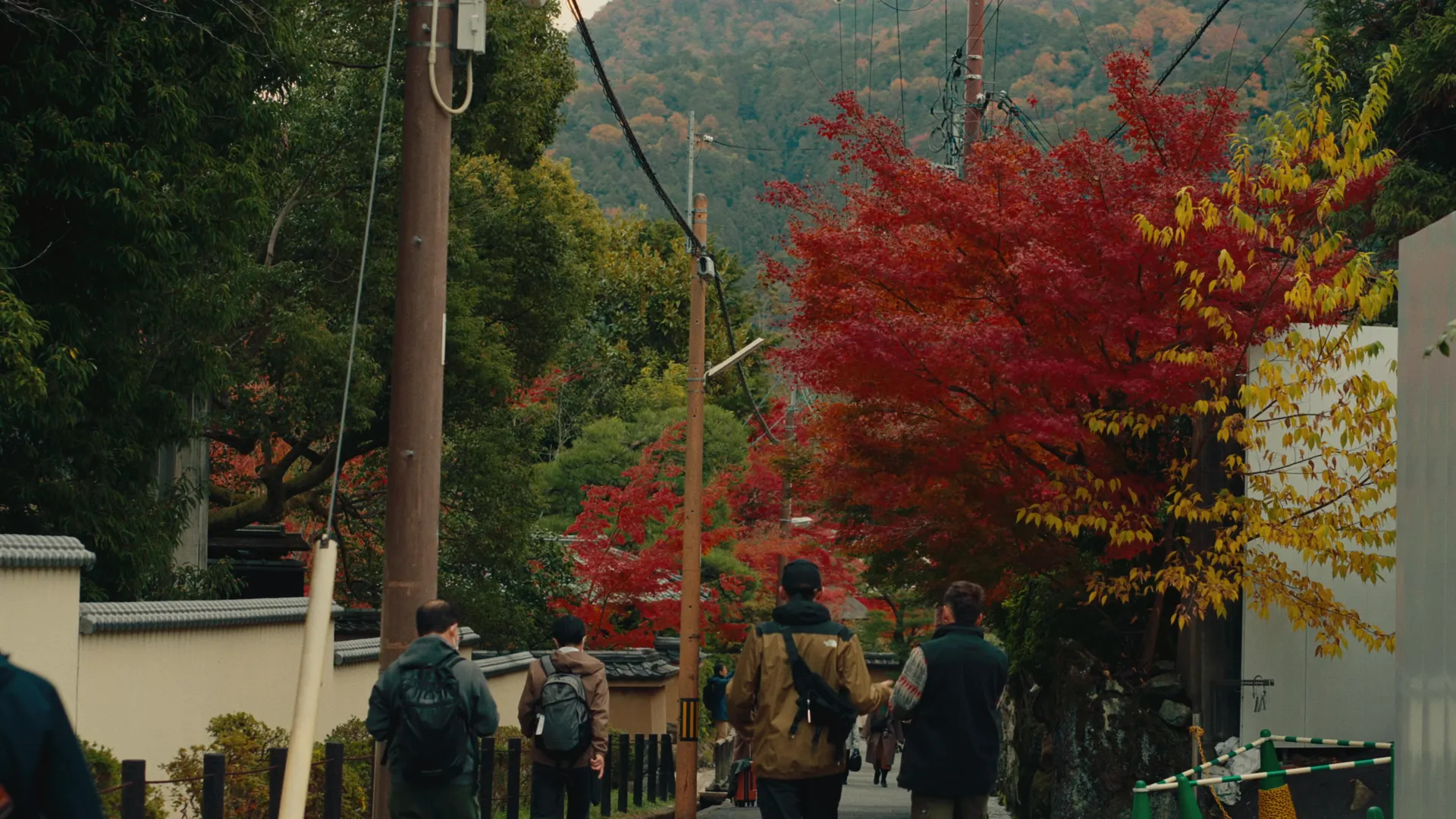
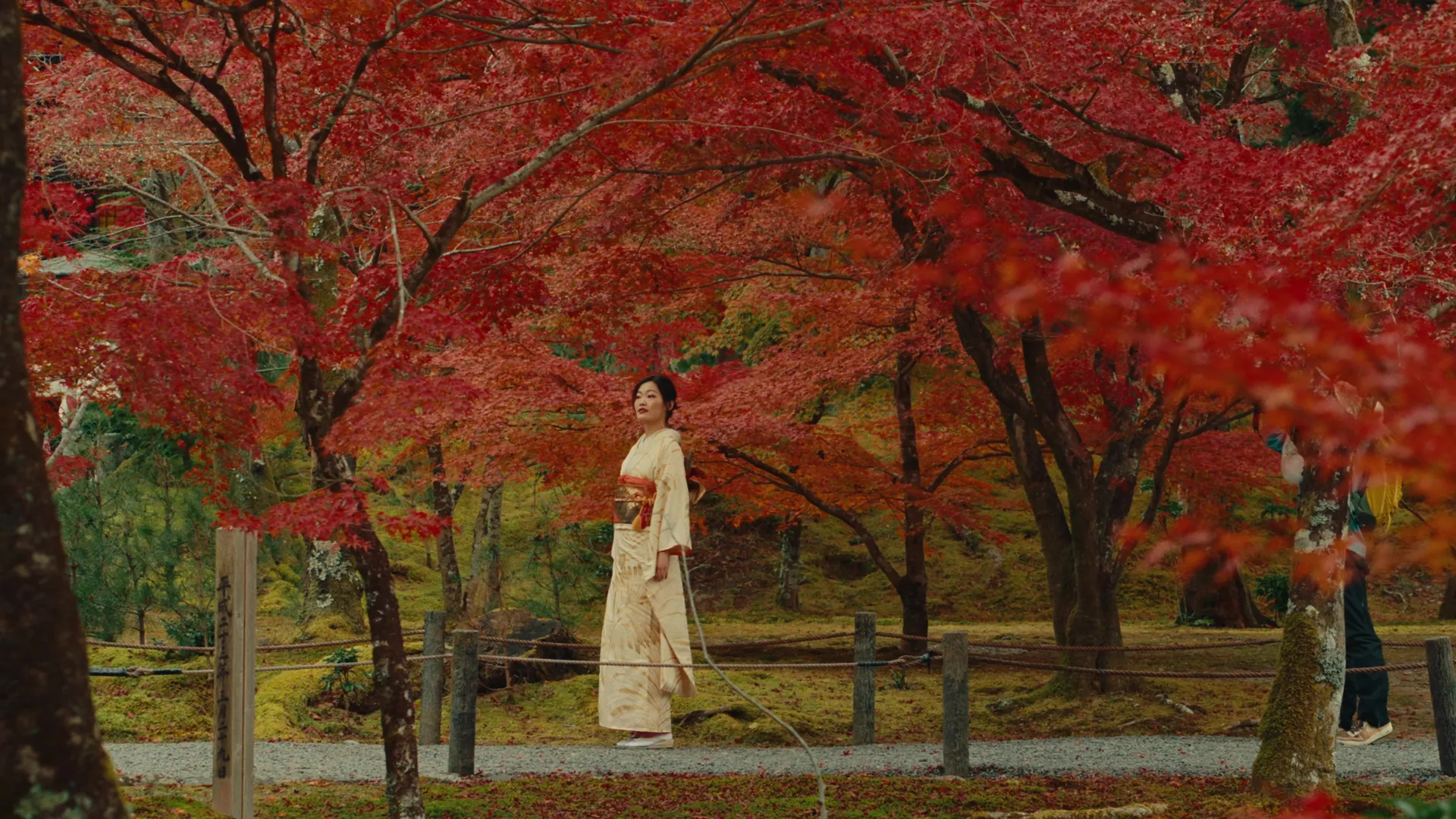
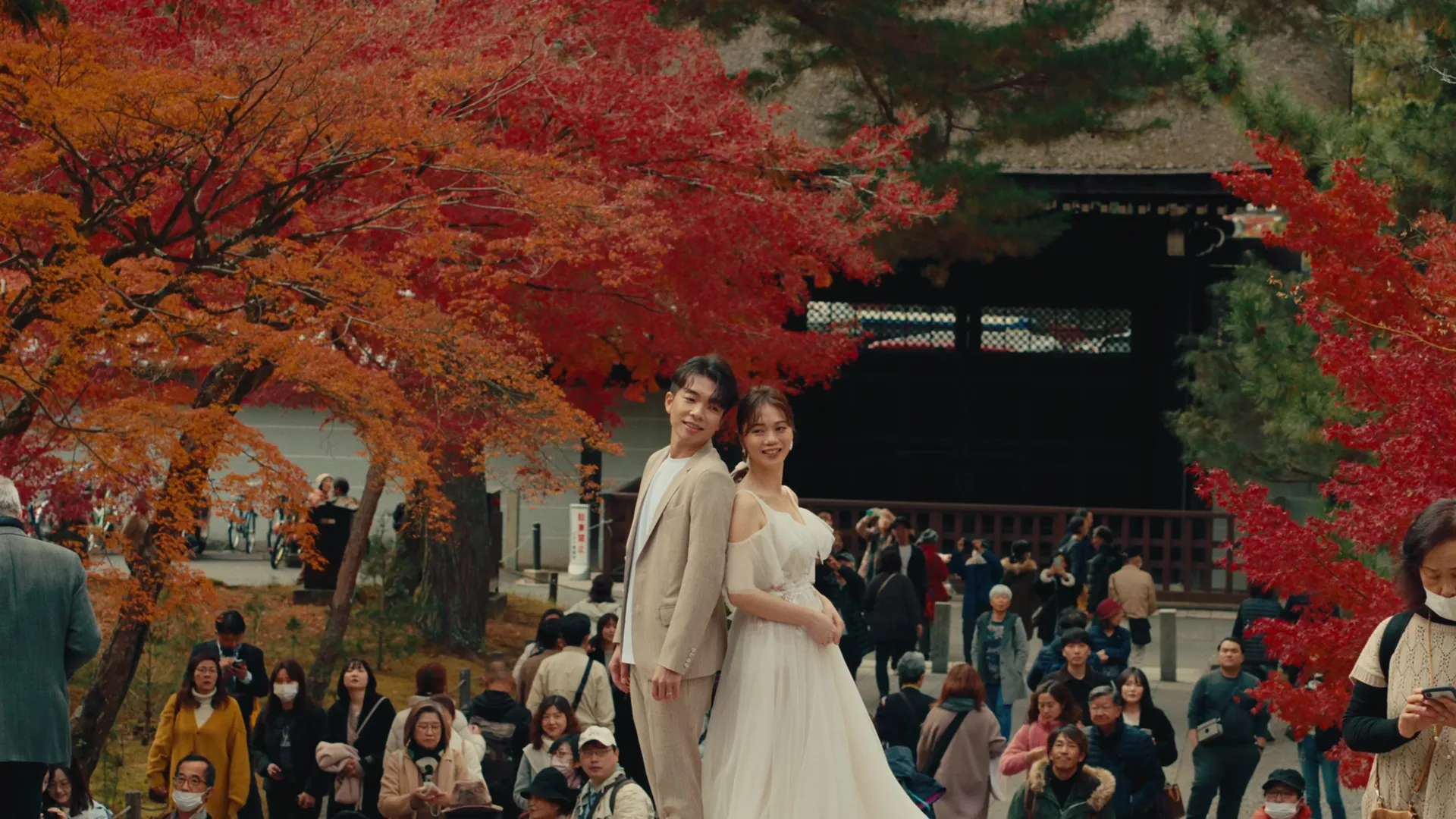
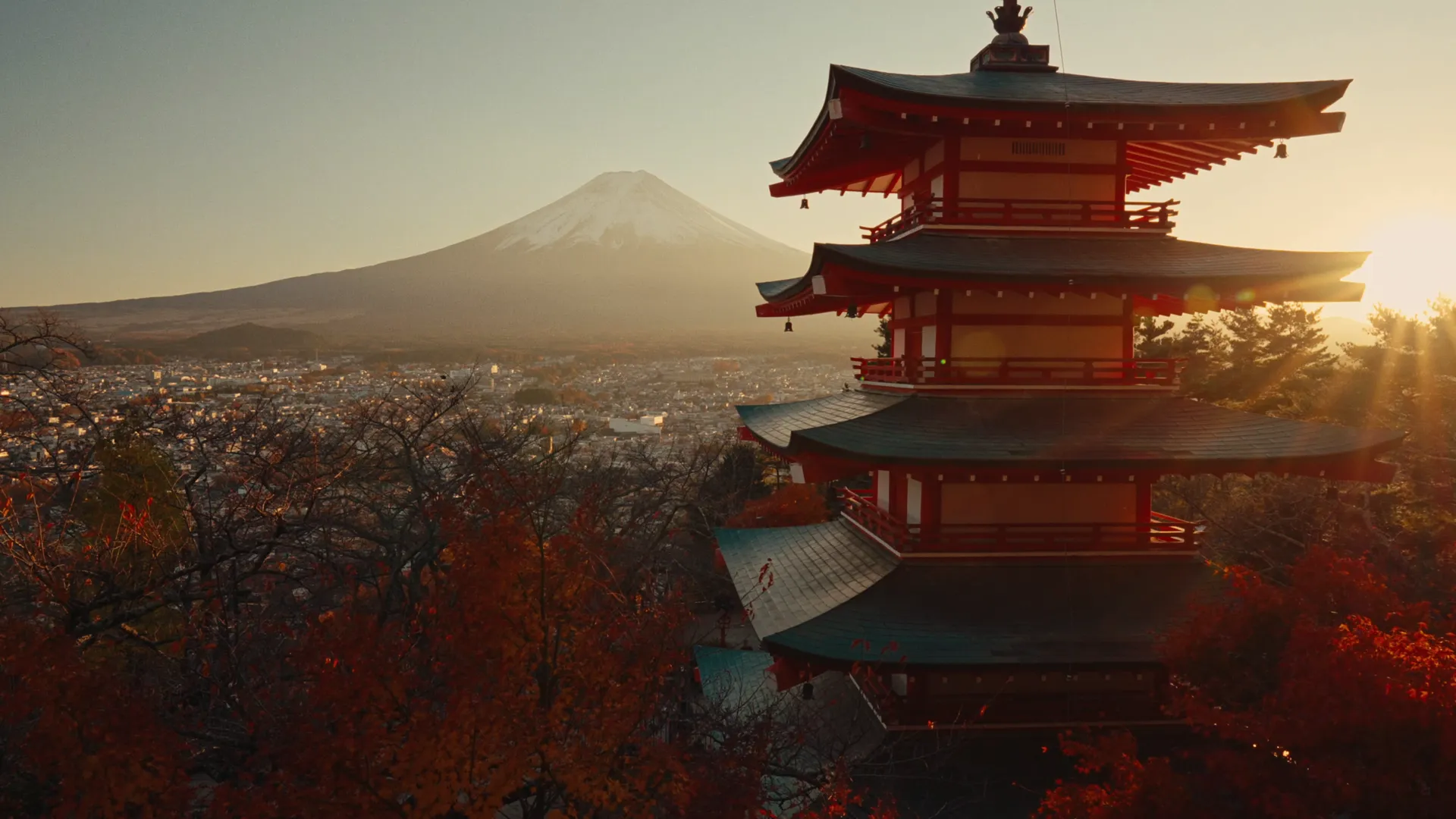
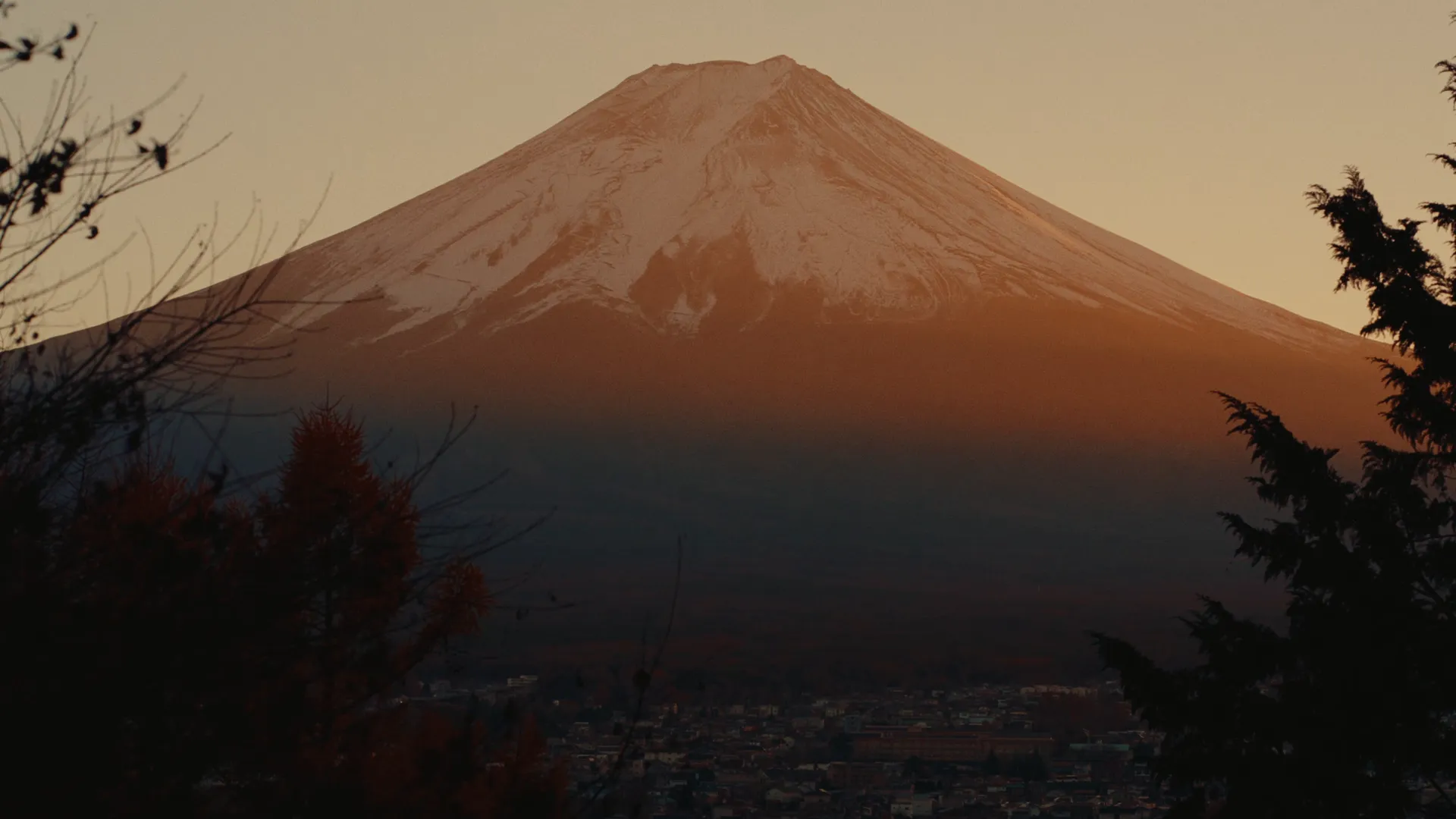
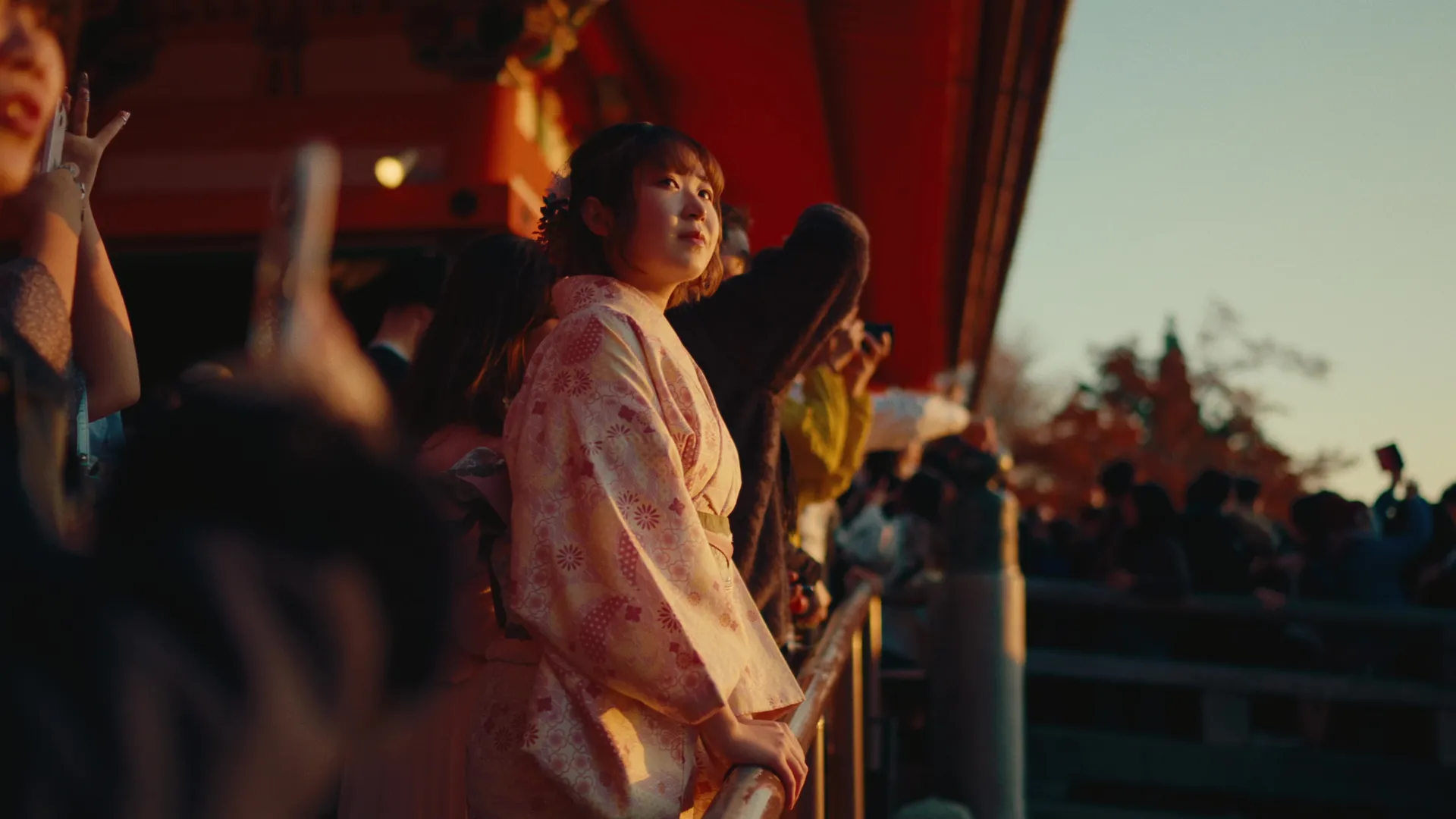
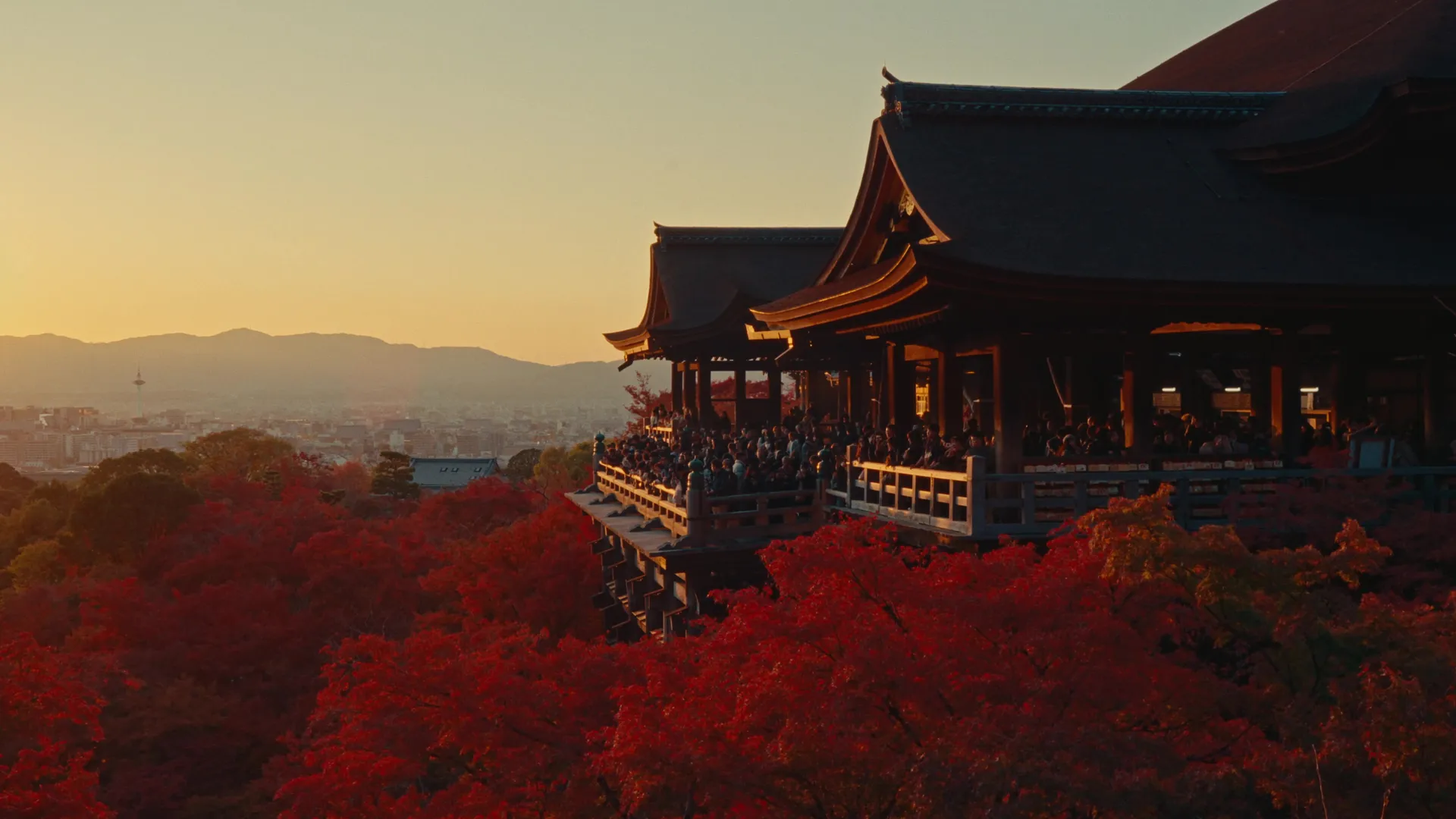
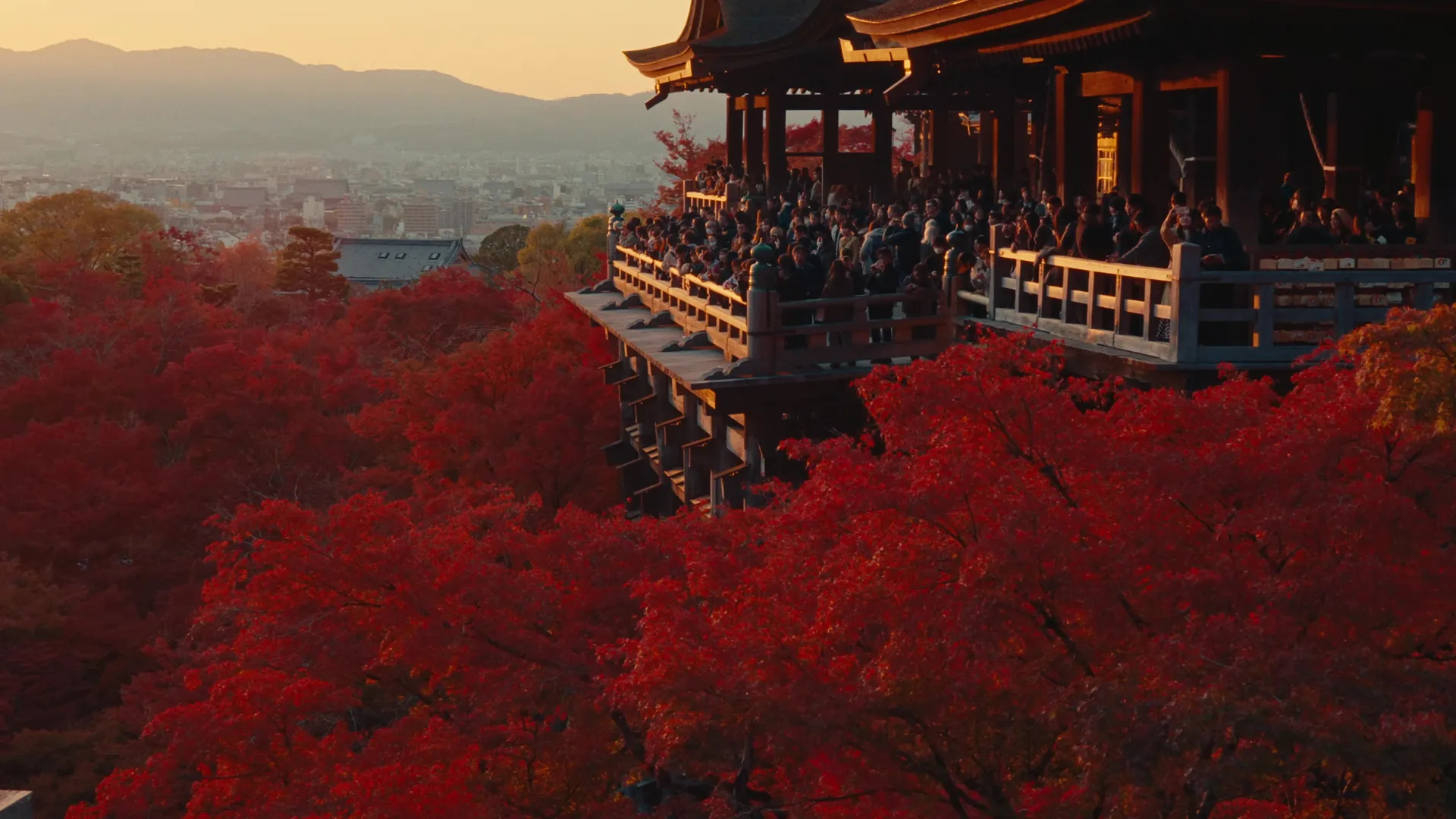
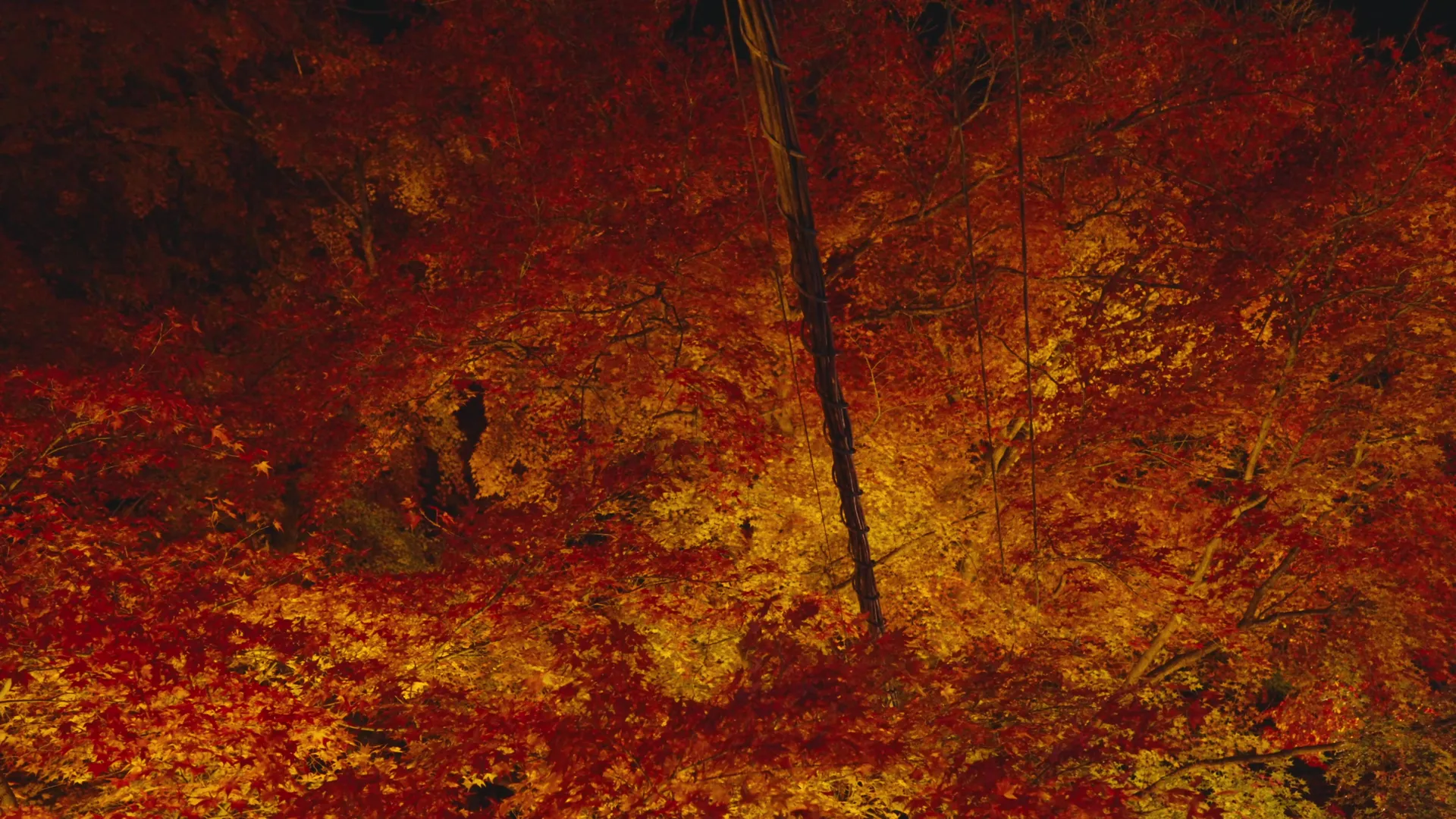
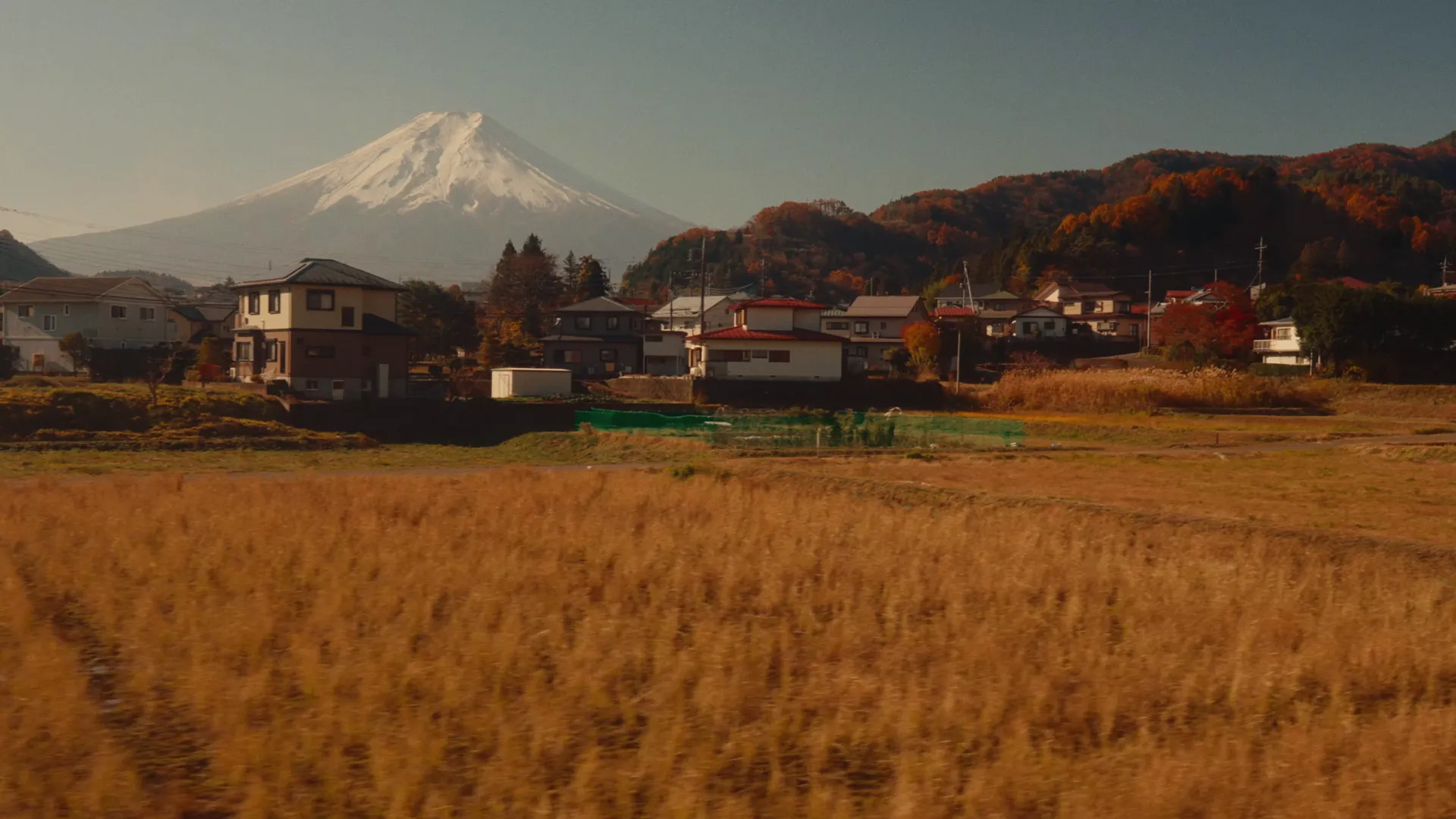
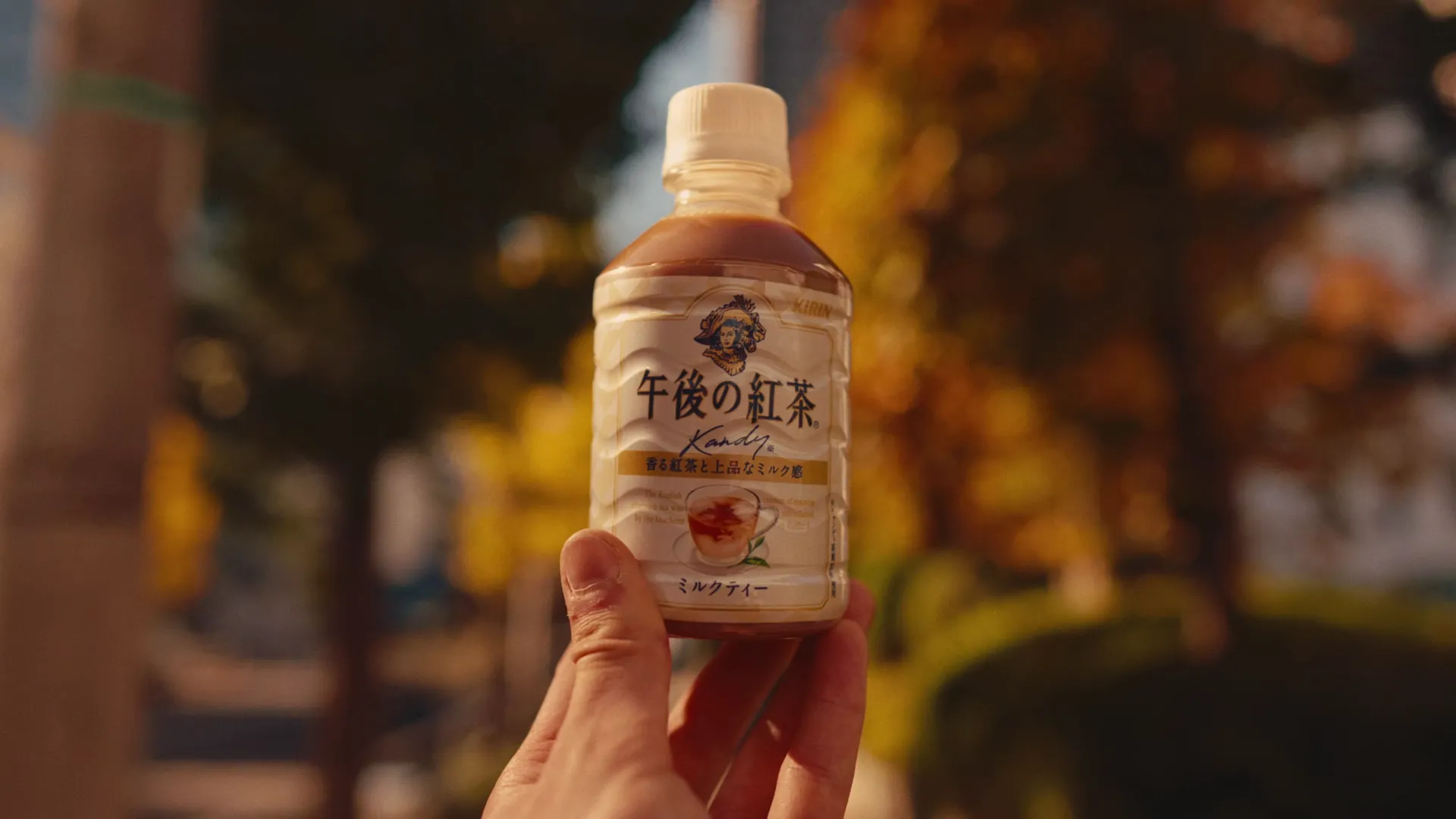
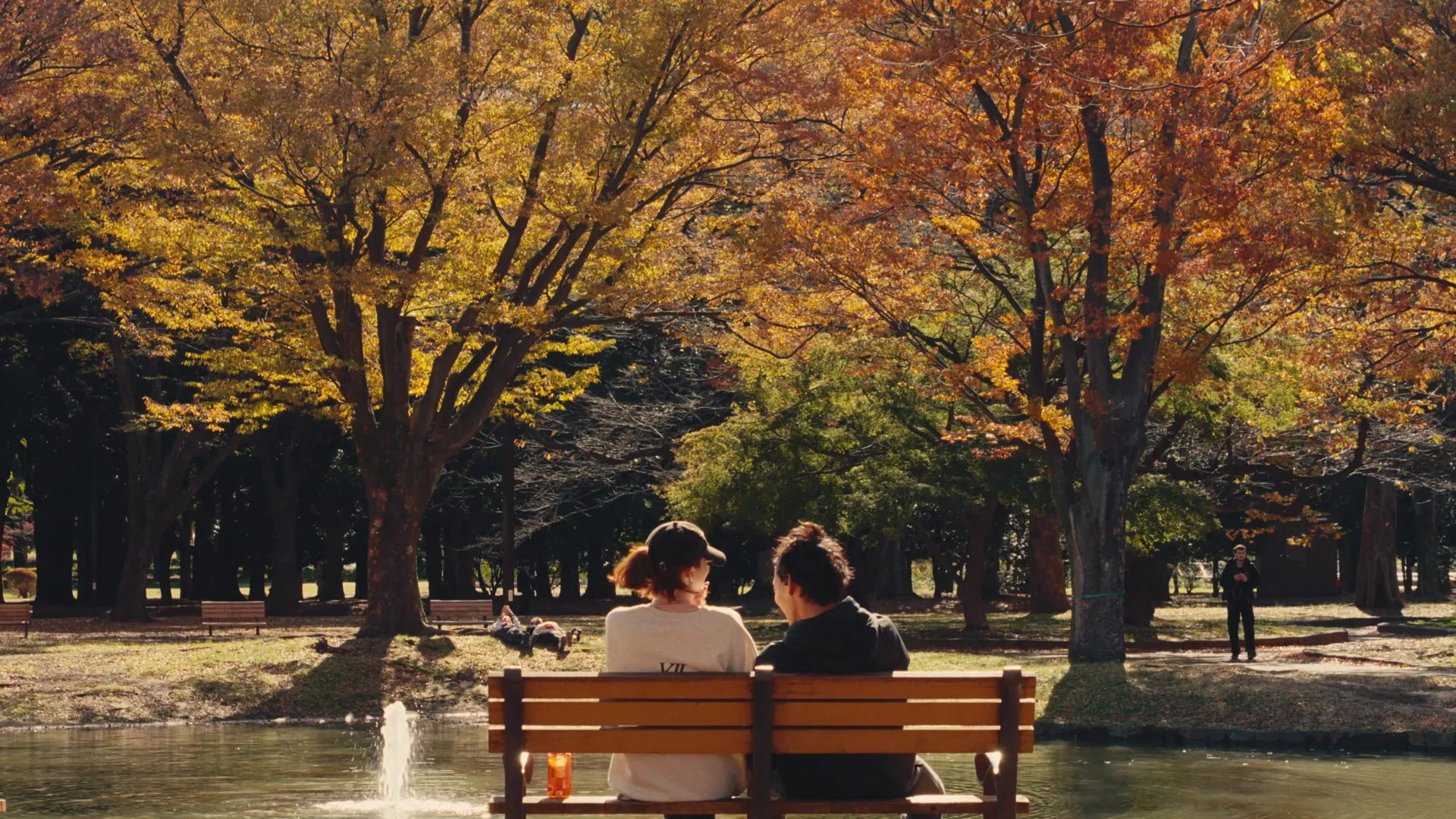
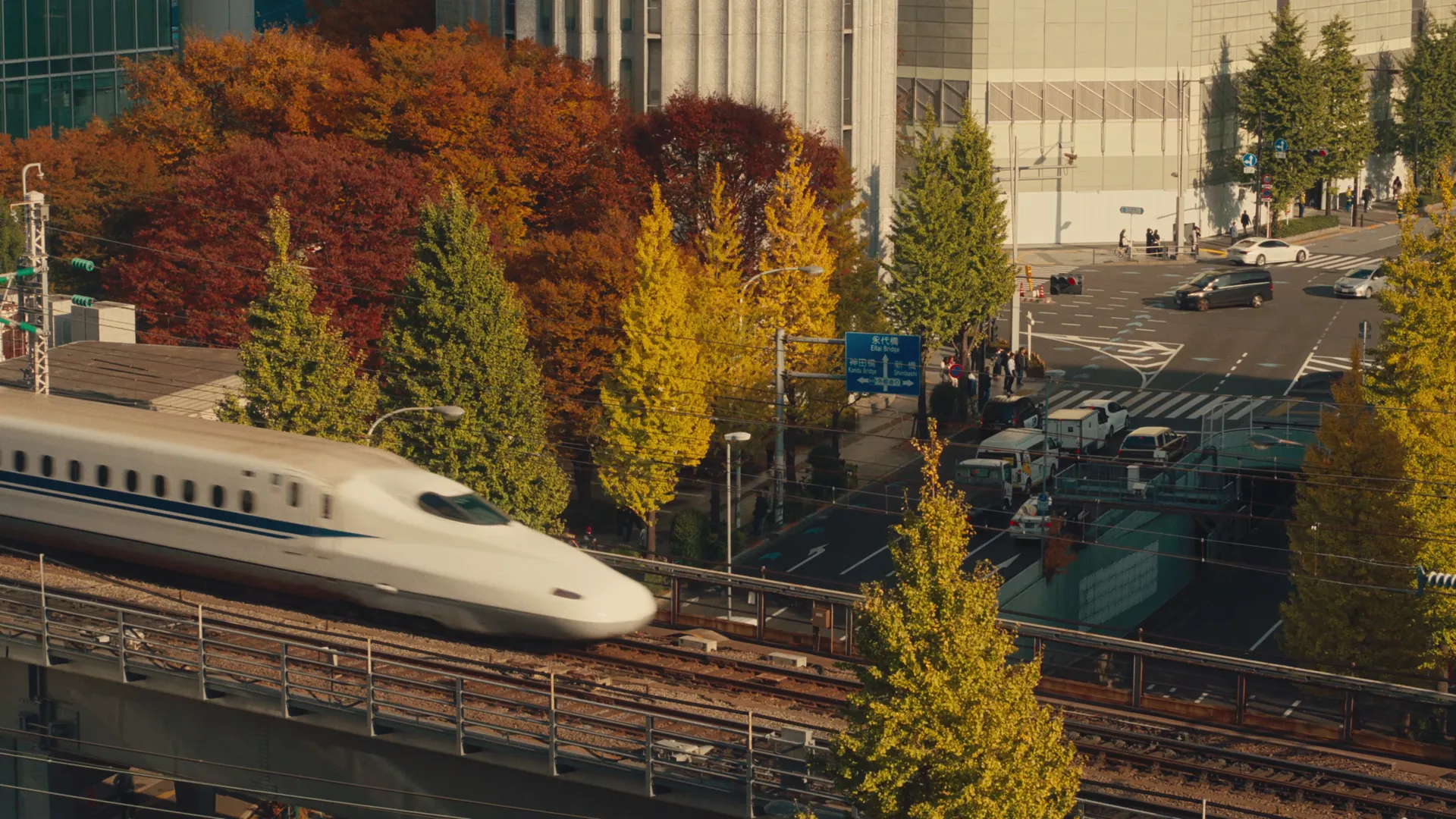
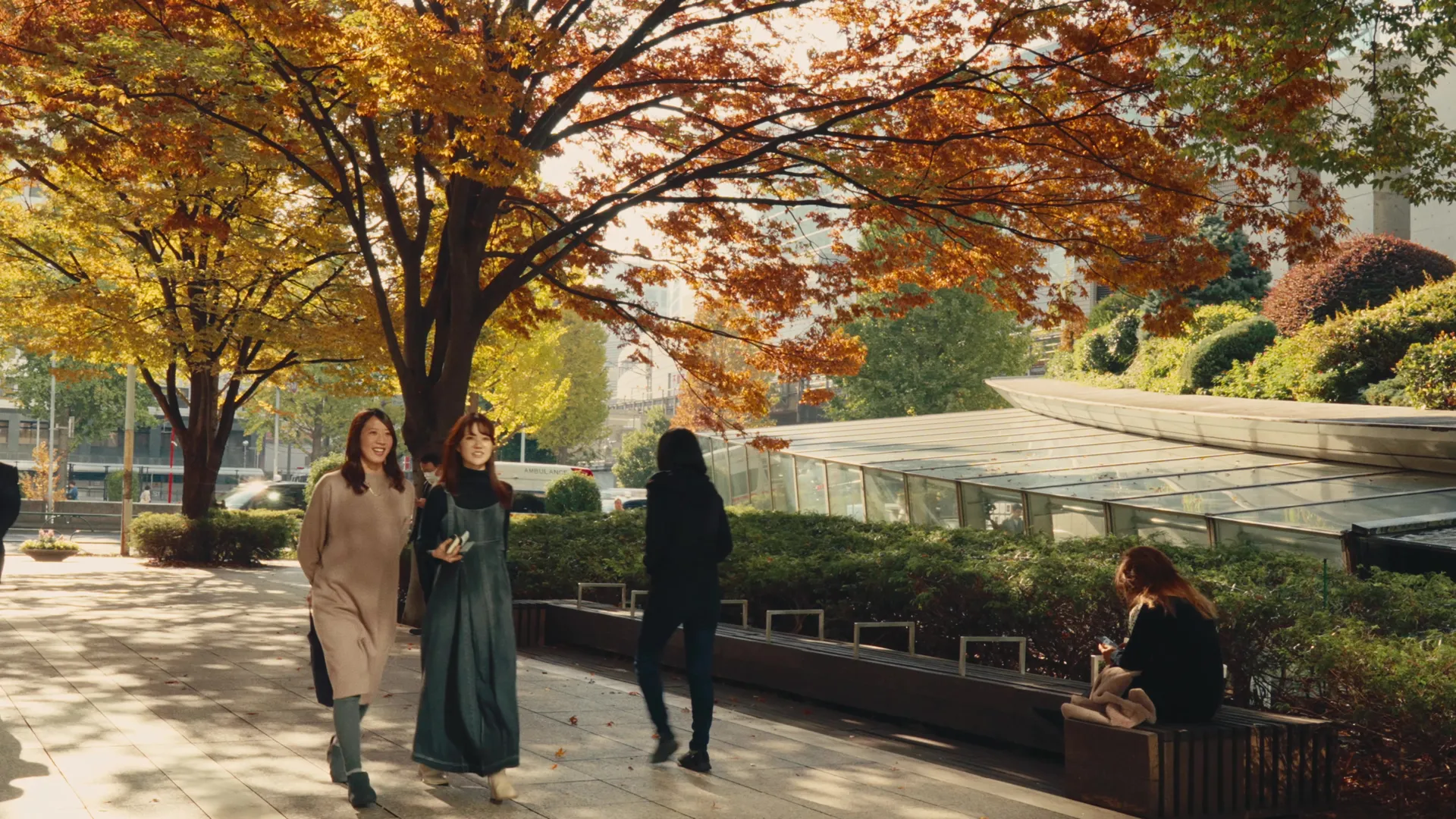
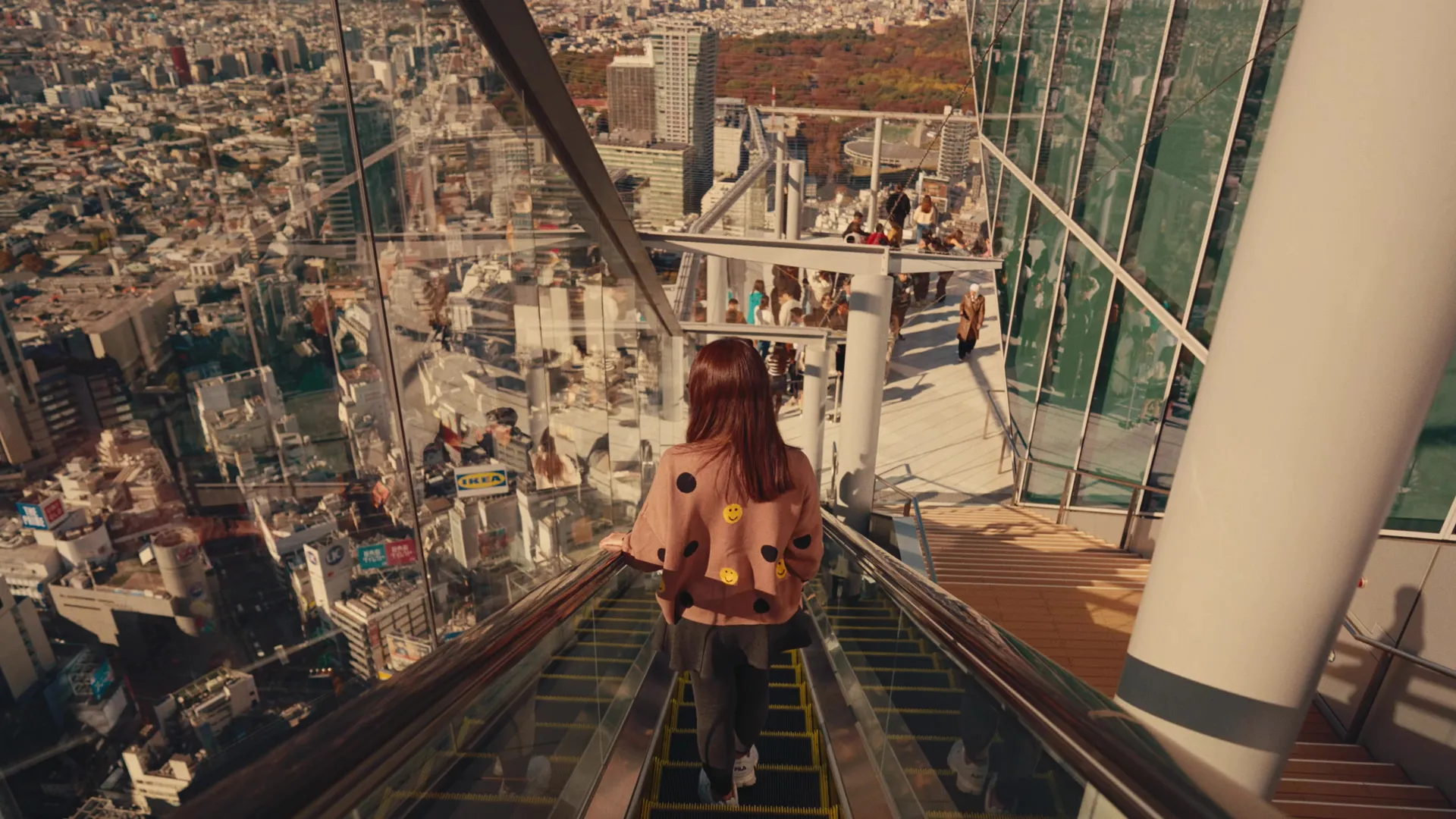
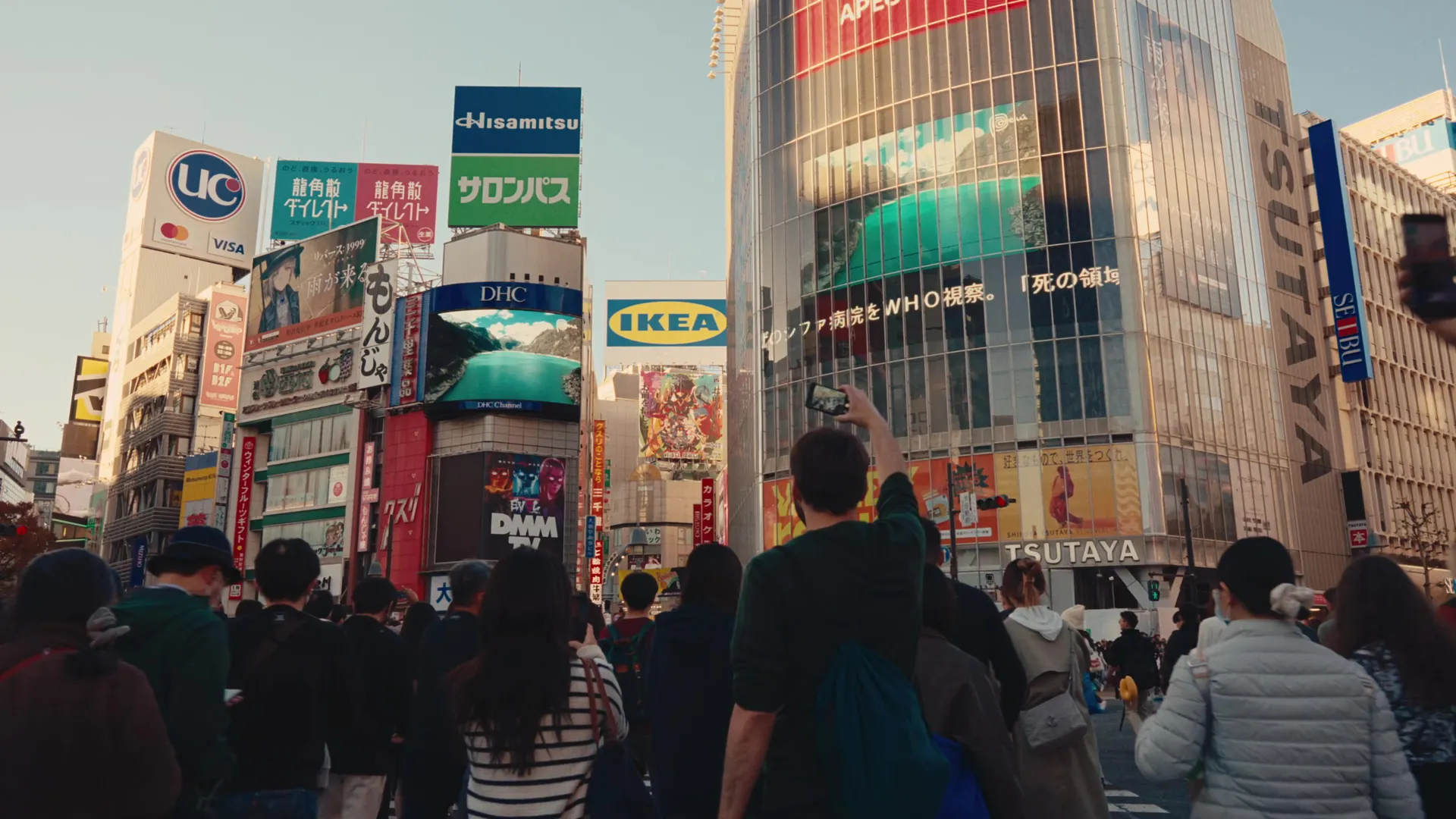
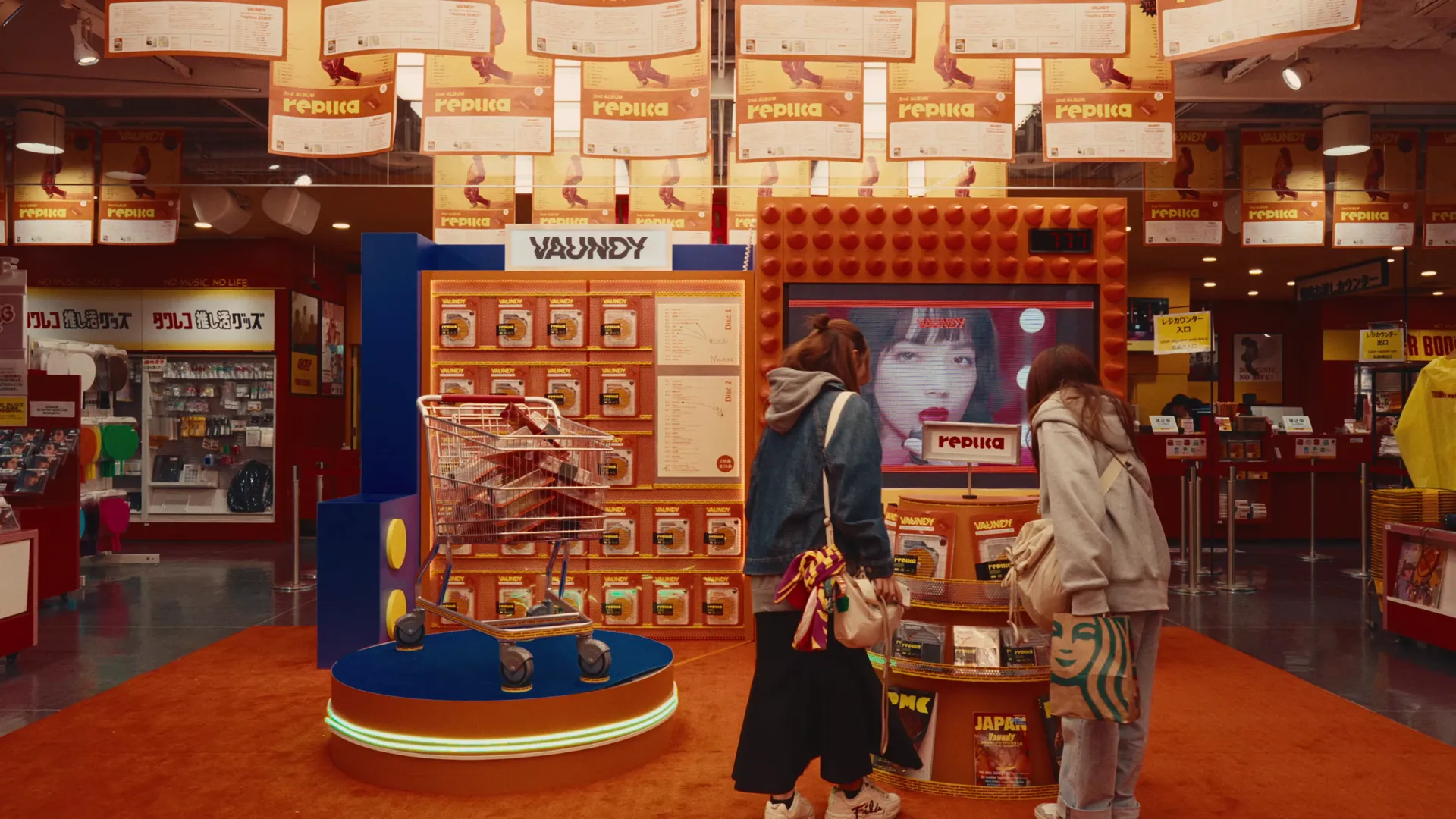
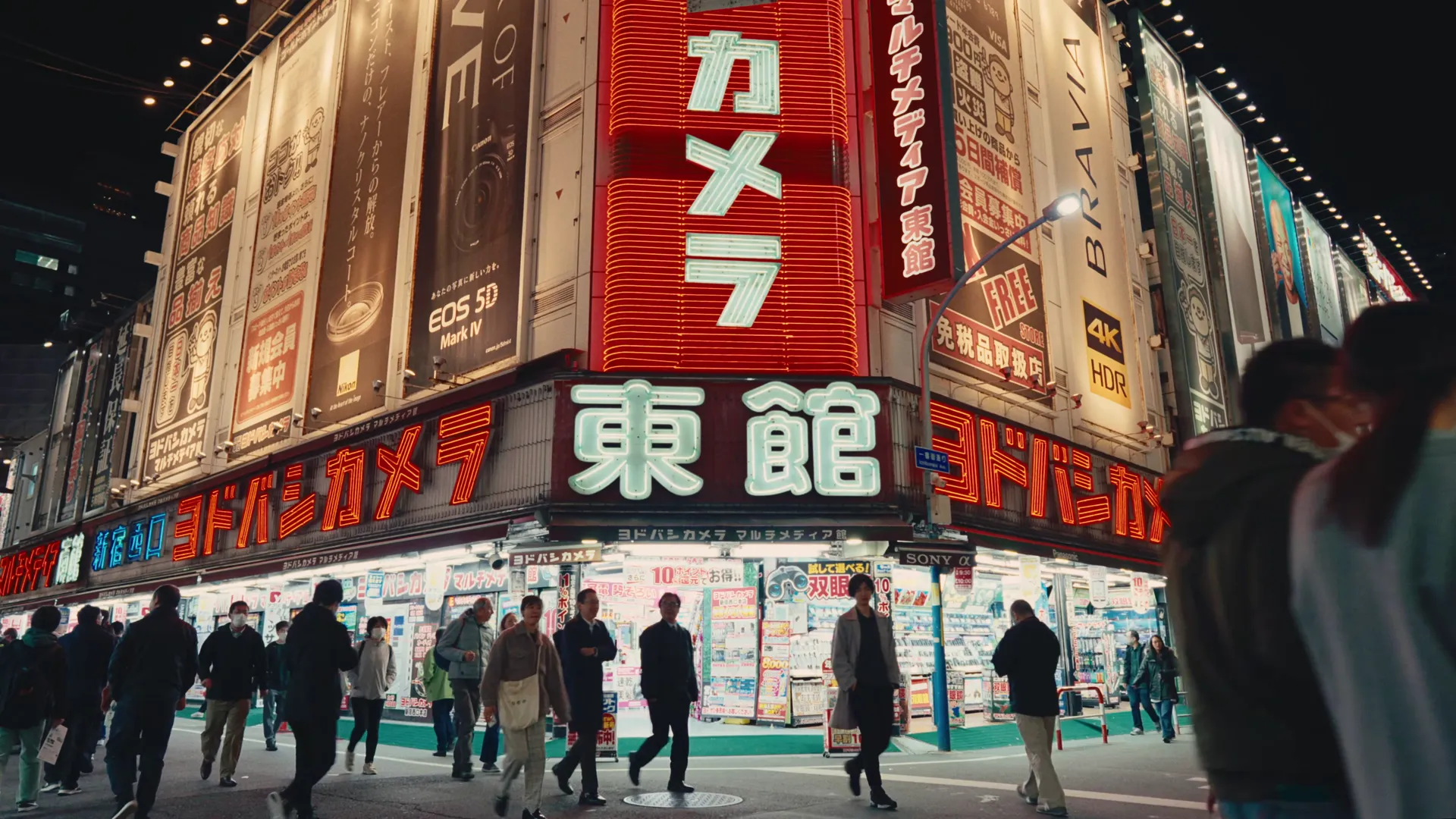
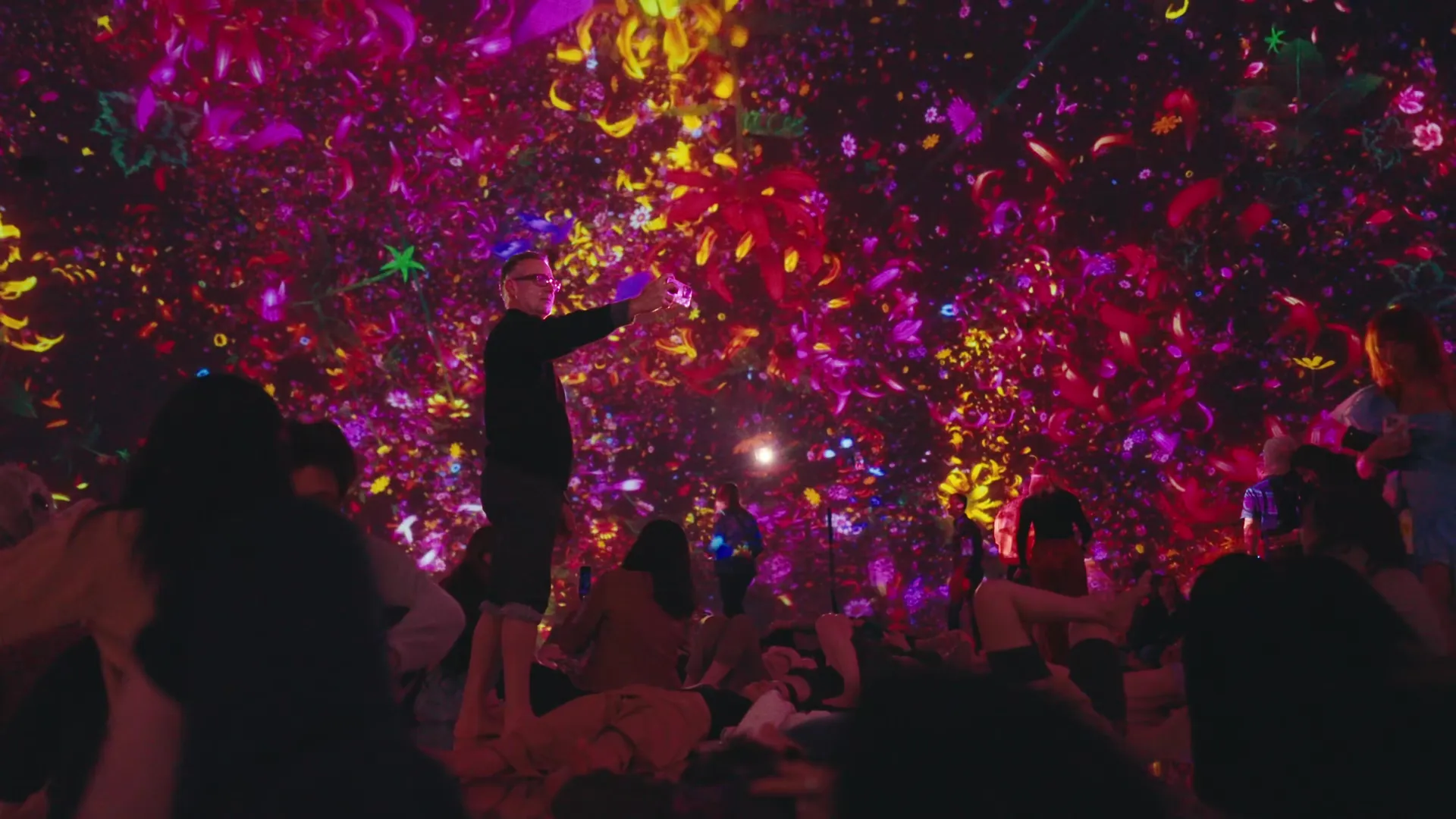
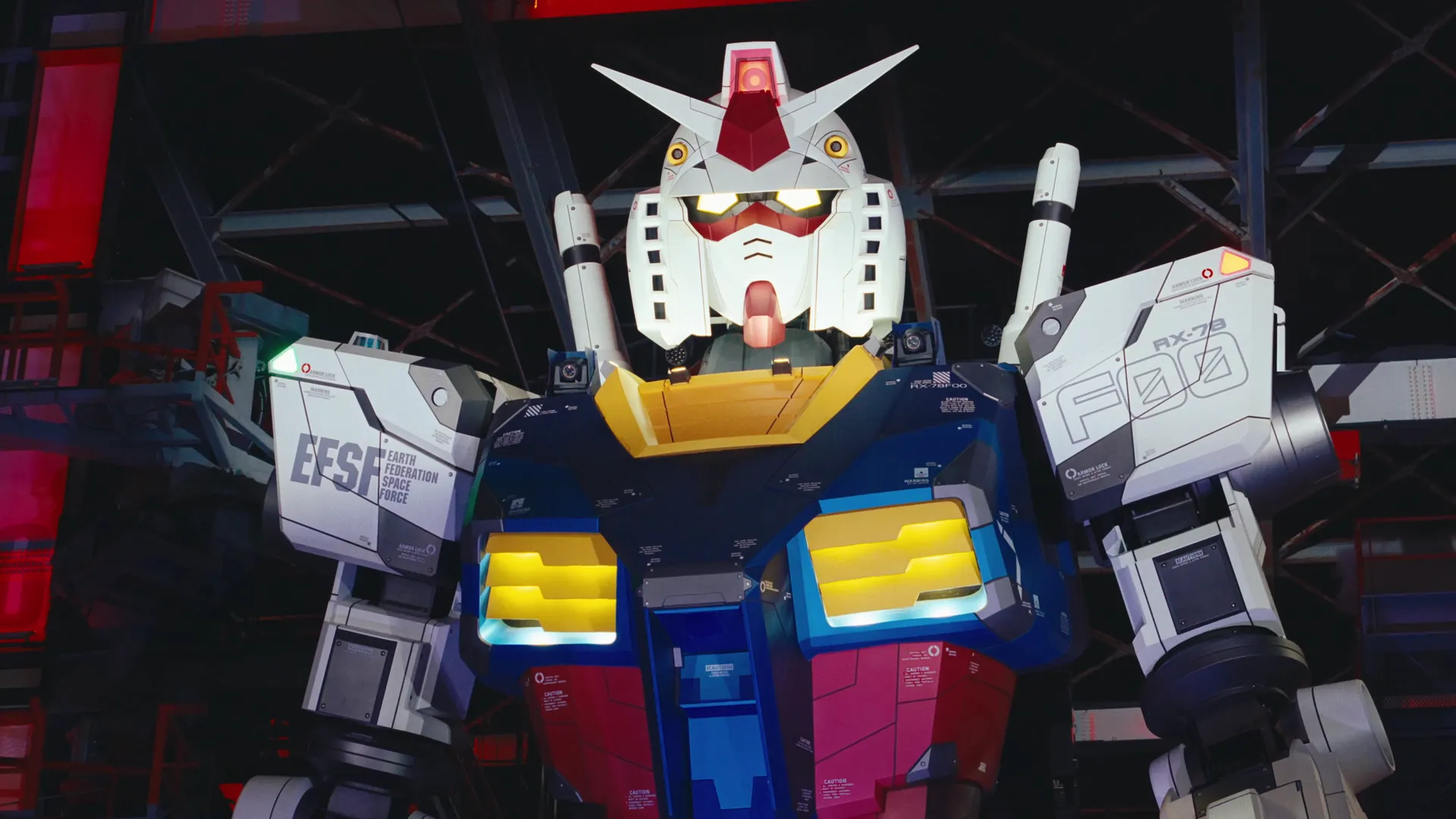
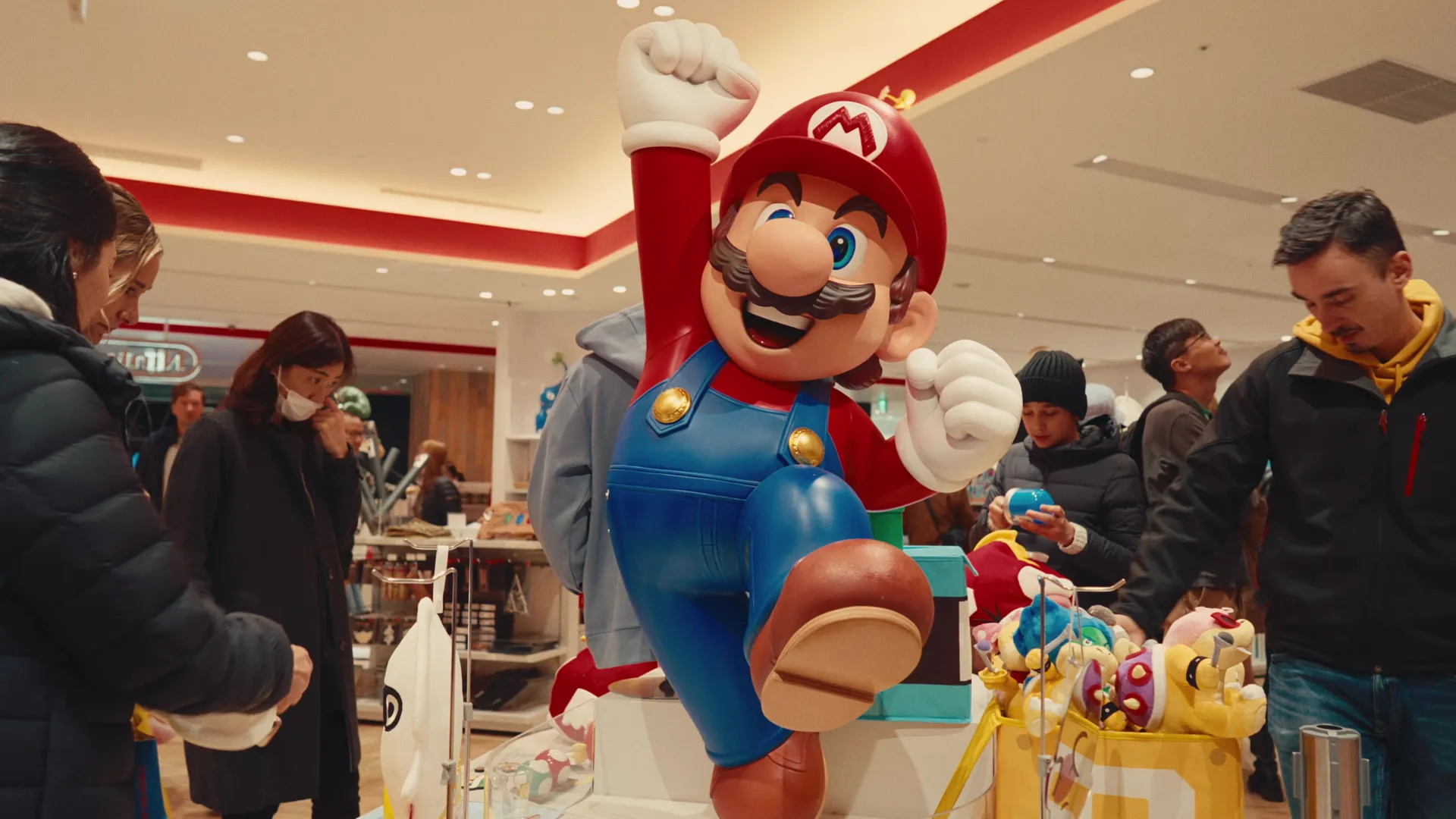
Visiting Japan had always seemed out of reach for me. Year after year, my friends would visit, sharing stories of their travels while I lived vicariously through them. I could never join them for one reason or another, but I always looked forward to the time when I would finally make it work and see Japan for myself.
In early 2020, that time came. My trip was booked and ready to go, but the COVID pandemic forced it all to be cancelled. After some very tough years for everyone, things started to look up again.
In November 2023, I ventured to Japan on my own.
Whilst I was unsure if it would all work out and if I could even navigate through Japan alone, I knew that with all the challenges that led me here, this would be a trip to remember forever.
I dedicated & documented my journey to inspiring those who dream of visiting Japan. Whilst it’ll never be the same as being there, I hope to convey the sights and emotions, bringing Japan one step closer to you.
Videos edited & graded in DaVinci Resolve
Photos edited in Capture One & Adobe Photoshop
It looks like you’re on mobile.
This section was crafted with a larger screen in mind.
Please head over to your Desktop to get started.
Can you edit faster than the B-Roll Fade & Finish PRO System?
First, Download the Challenge DaVinci Resolve Project Archive:
Then, follow these simple steps to Import the Project Archive into DaVinci Resolve:
Download & Unzip: Click the download button above and extract the .zip file to your computer. You will see a folder ending in .dra (DaVinci Resolve Archive).
Open the Project Manager: Launch DaVinci Resolve. If you are already in a project, click the Home icon in the bottom right corner to open the Project Manager.
Restore the Archive: Right-click in any empty gray space within the Project Manager window and select “Restore Project Archive…”
Select the Folder: Select the “Take The Challenge.dra” folder and click Open.
Ready to Edit: The project will appear with all the necessary image assets loaded and ready for you to take the challenge.
Then, Choose Your Method below and Start the Stopwatch when you’re ready –
Your final edit time is:
It’s not easy to change how you work, but seeing the results is the first step.
Here is $10 off to help you take the next one.
CHALLENGE10
Use Code at Checkout
Time to Beat
Using the PRO Method: 02:14
Using the FREE Method: 03:18
Using the Native Method: 05:21
For users using only native DaVinci Resolve tools.
Setting up base footage and initial blur transition.
Creating dim transition and preparing first B-Roll.
Adding styling and entrance fade animation.
Final framing and batch applying effects.
For users utilising the free version of the B-Roll Fade & Finish tool.
Setting up base footage and A-Roll tool.
Applying B-Roll tool and framing.
Setting keyframes and extending timeline.
Batch applying effects and final framing.
For users utilising the B-Roll Fade & Finish PRO System.
Setting up base footage and PRO A-Roll tool.
Applying PRO B-Roll tool and framing.
Setting movement and extending timeline.
Batch applying effects and final framing.