Partnership ● May 2026

PixelTools

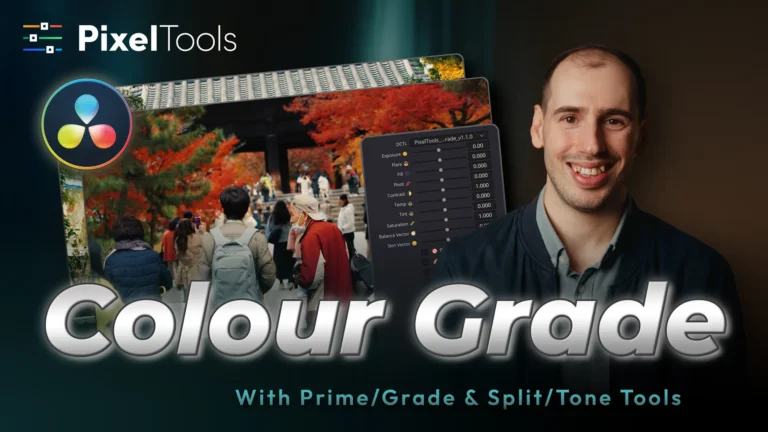
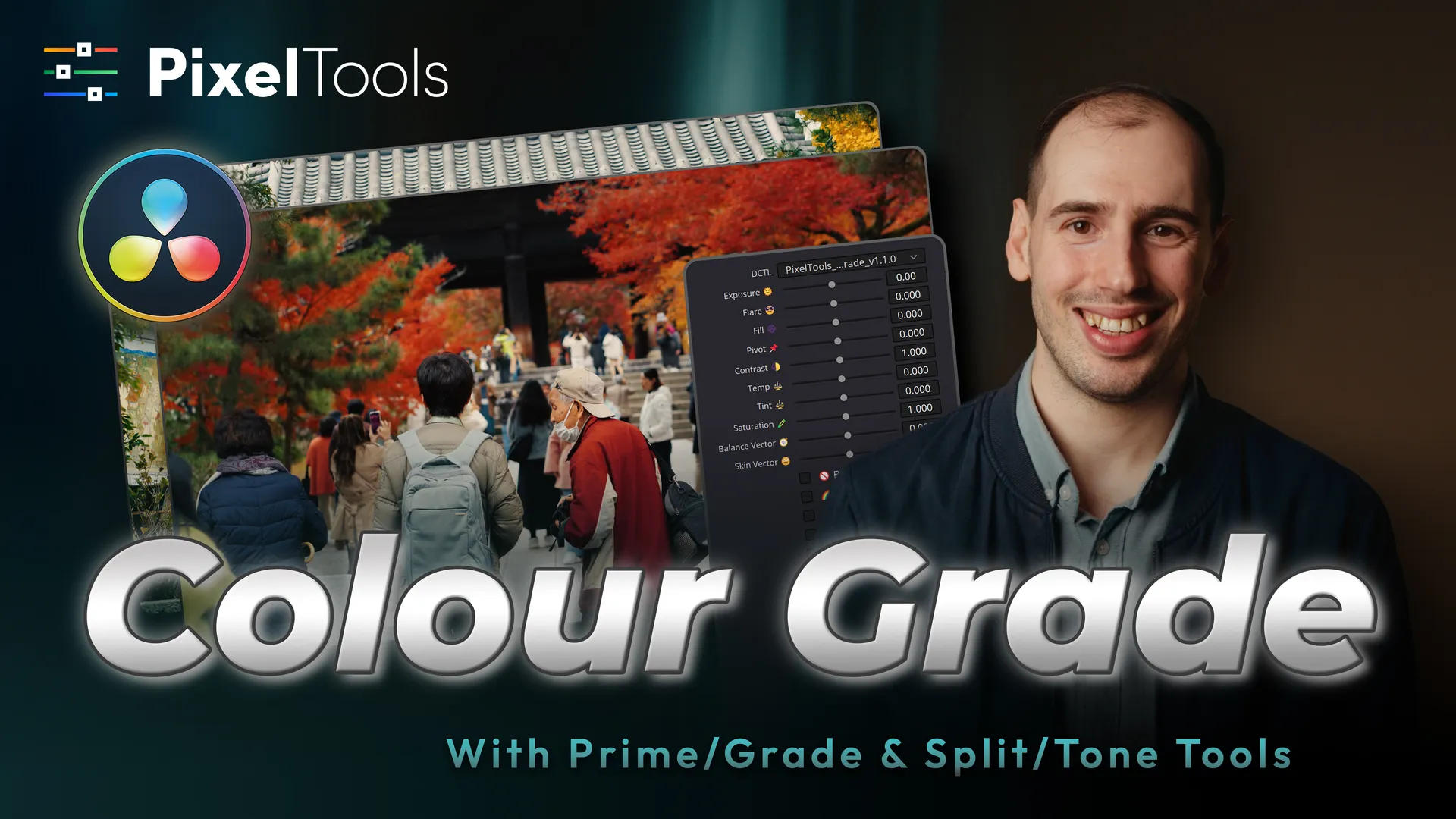
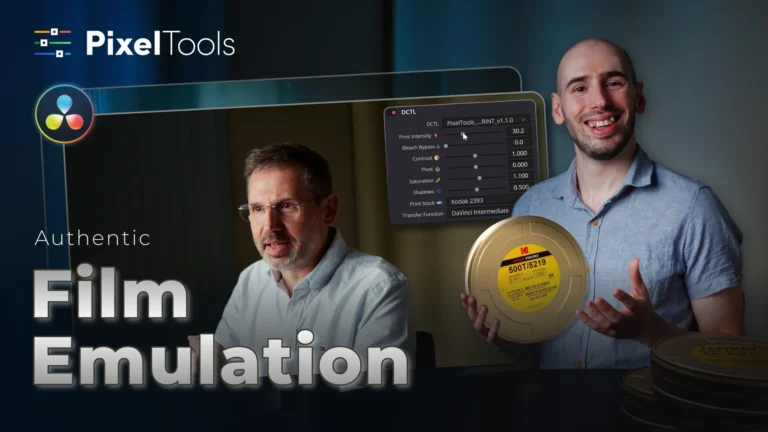
Achieve Refined & Stylised Colour Grades in DaVinci Resolve | PixelTools Prime/Grade & Split/Tone

Colour Grading is not easy. Especially when you’re aiming for a refined, stylised look but with good colour separation and true-to life skin tones.

And not being able to achieve this balance can be really frustrating, because we treasure and pour so much effort into filming our footage, that we want the absolute best for it. And believe me, having gone through many periods over the years of trying to improve my color grading and continue trying to do so, I know exactly what it’s like to chase this and also how your vision & judgment of what makes a good colour grade changes over time.

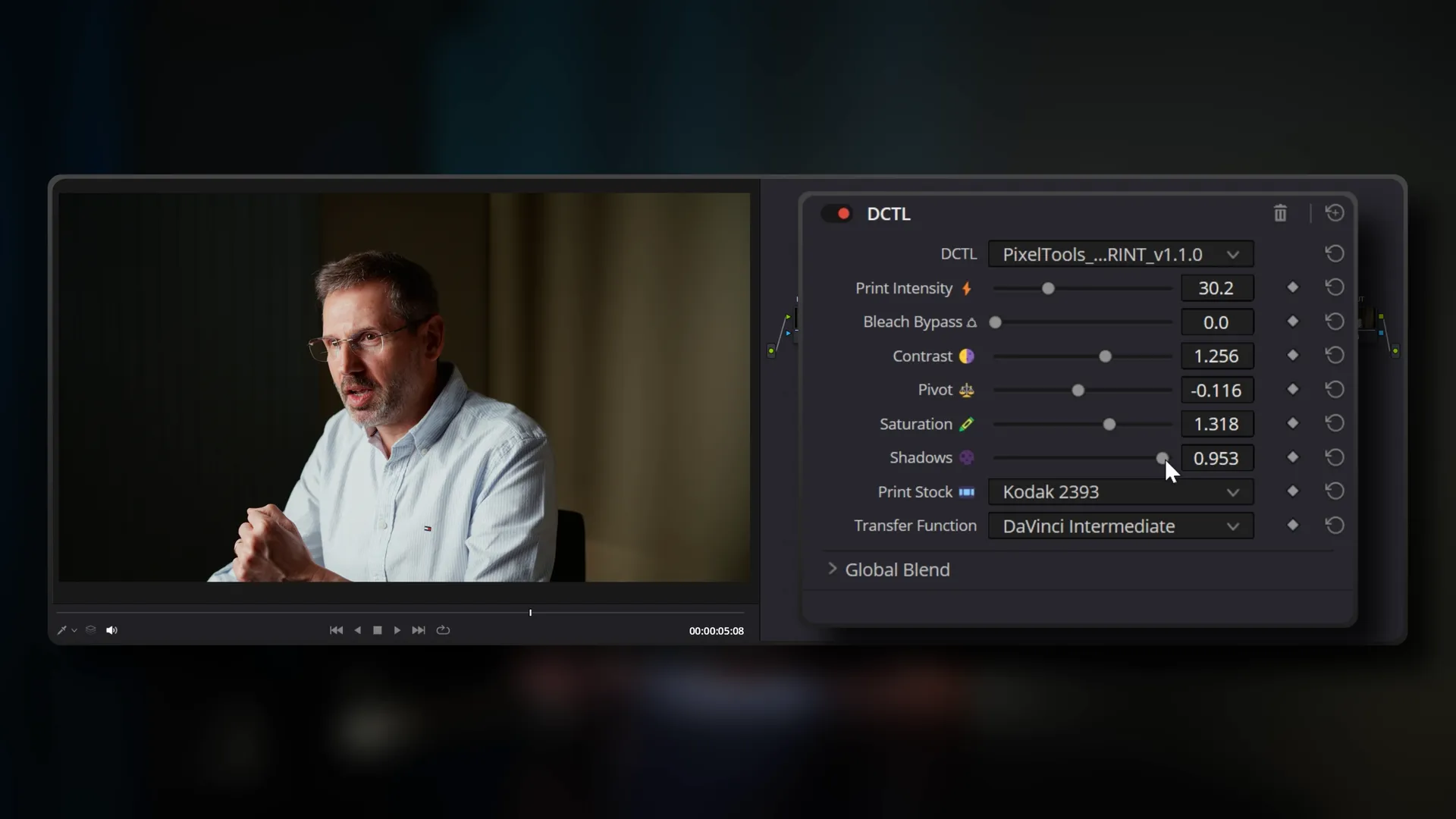
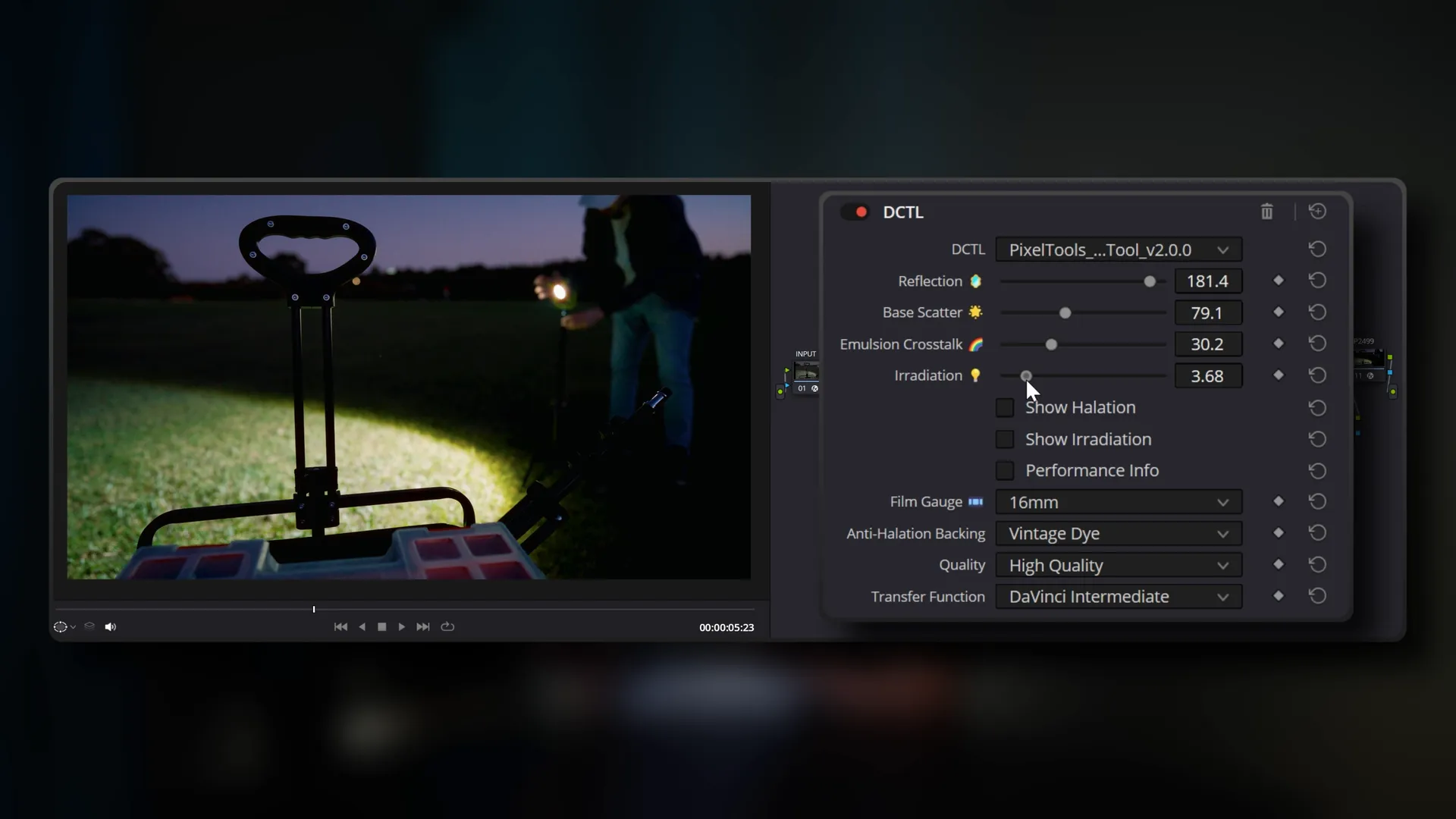
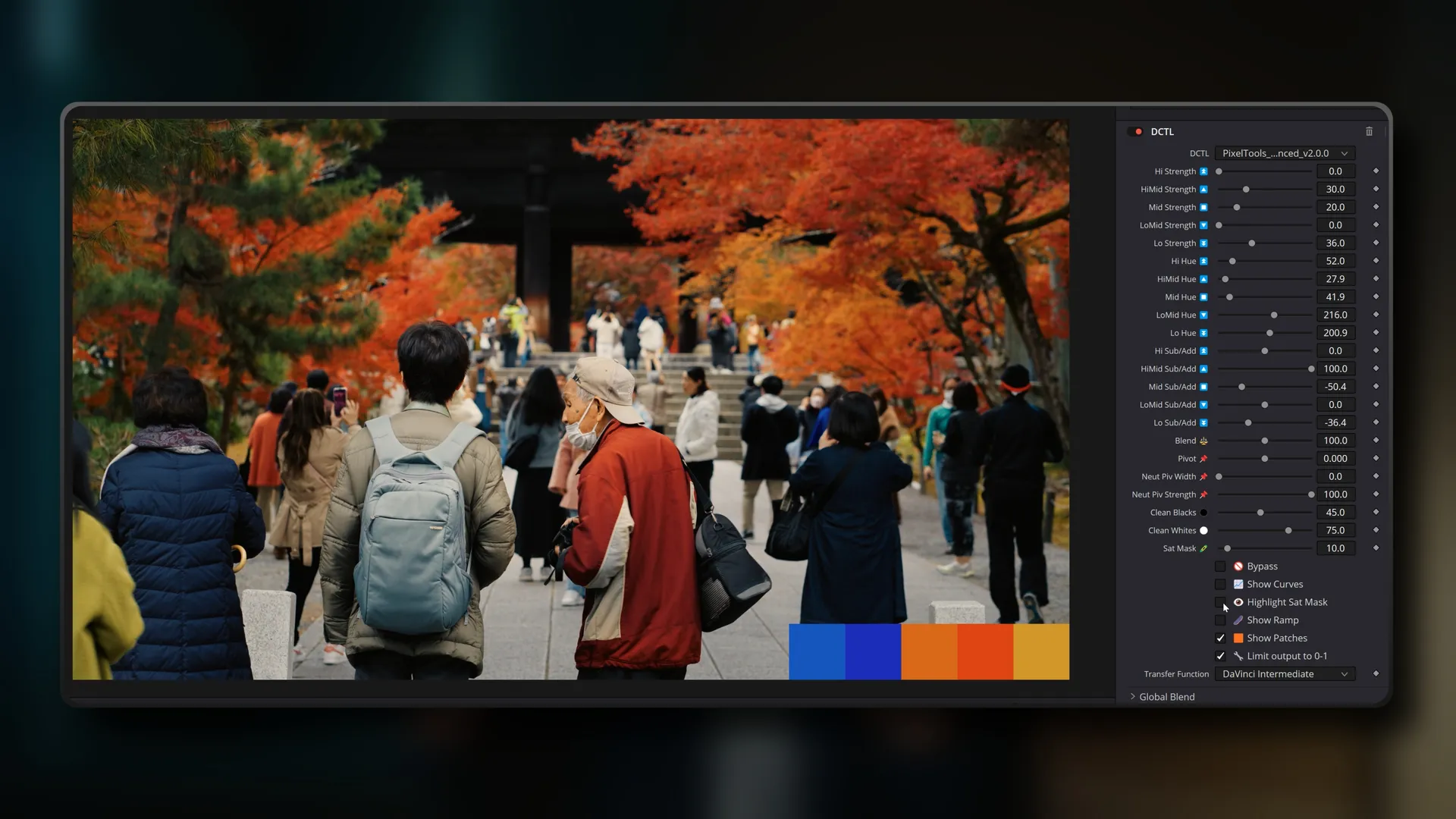
Recently, I had the opportunity to partner up with PixelTools and try out their new set of DaVinci Resolve colour grading tools which once again, made me re-evaluate my colour grading and see it in a whole new perspective.

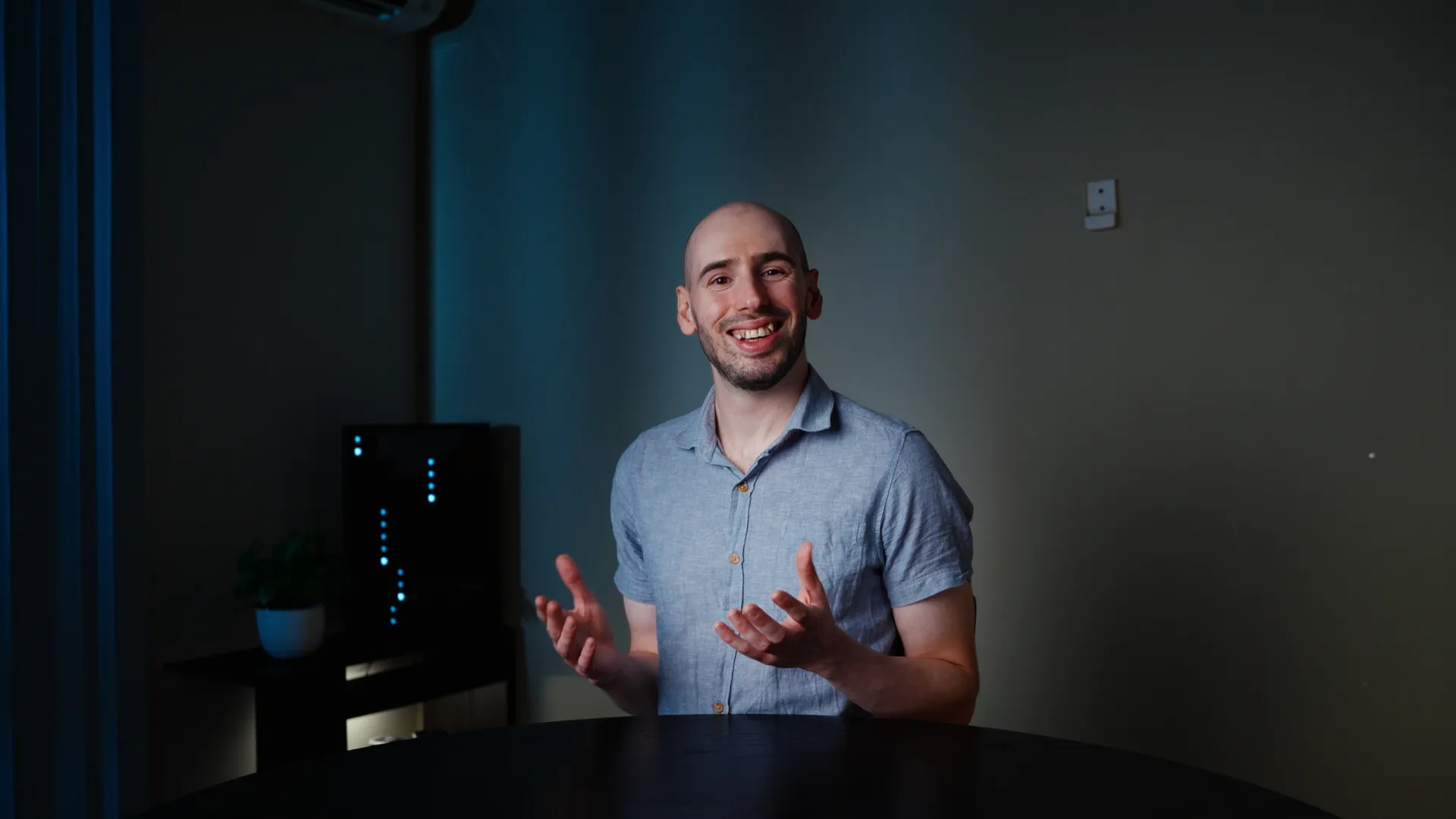
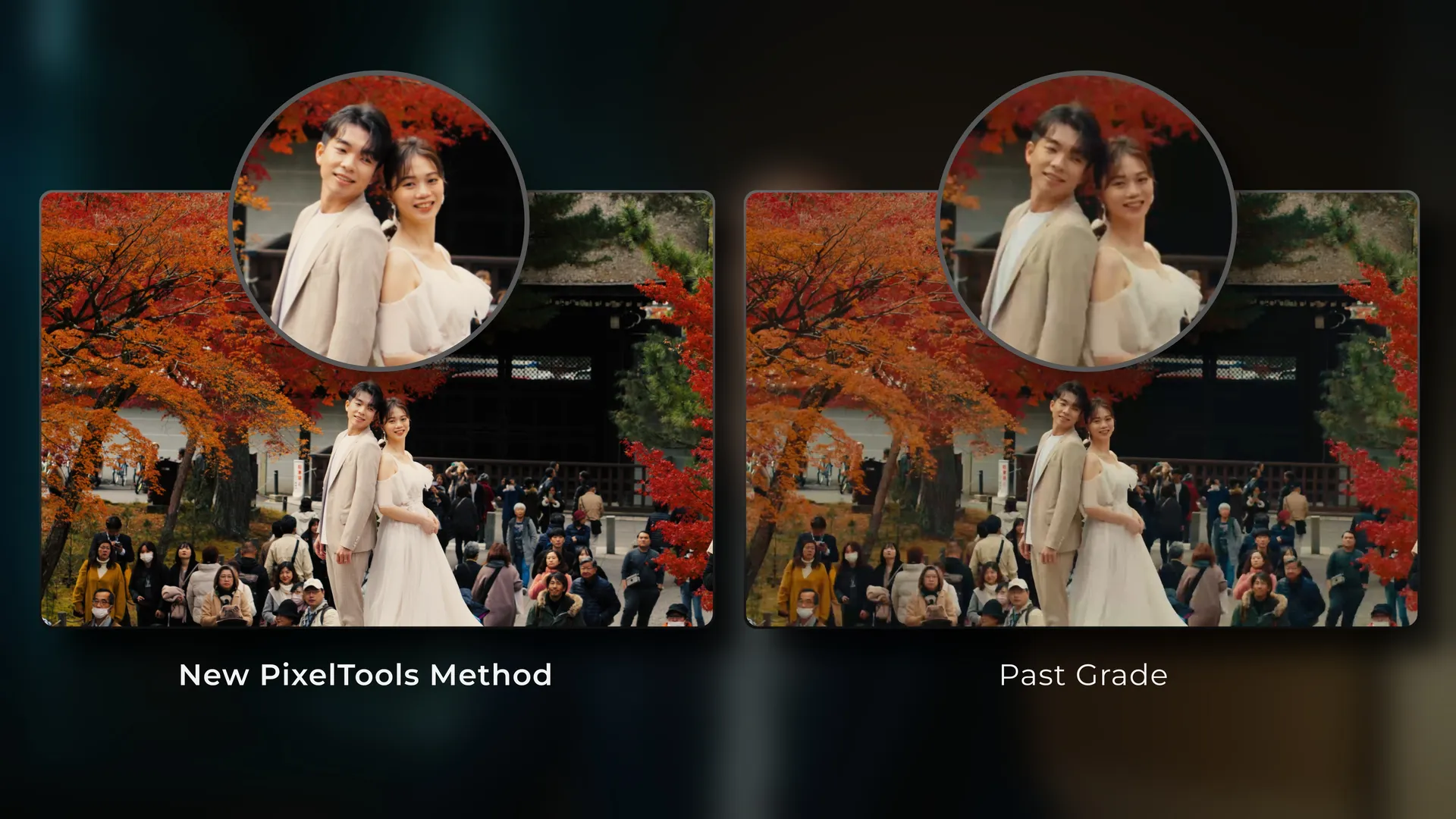
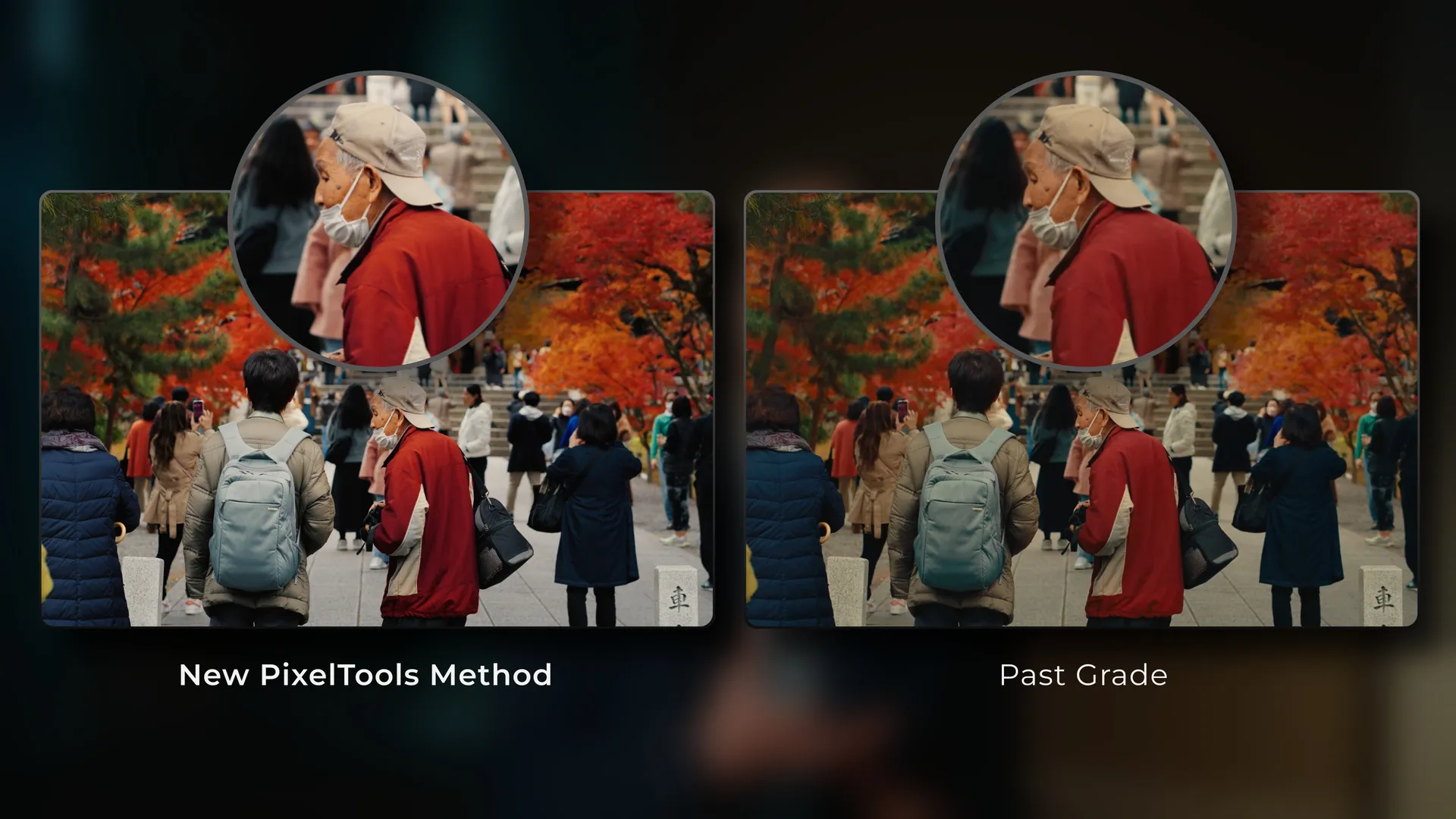
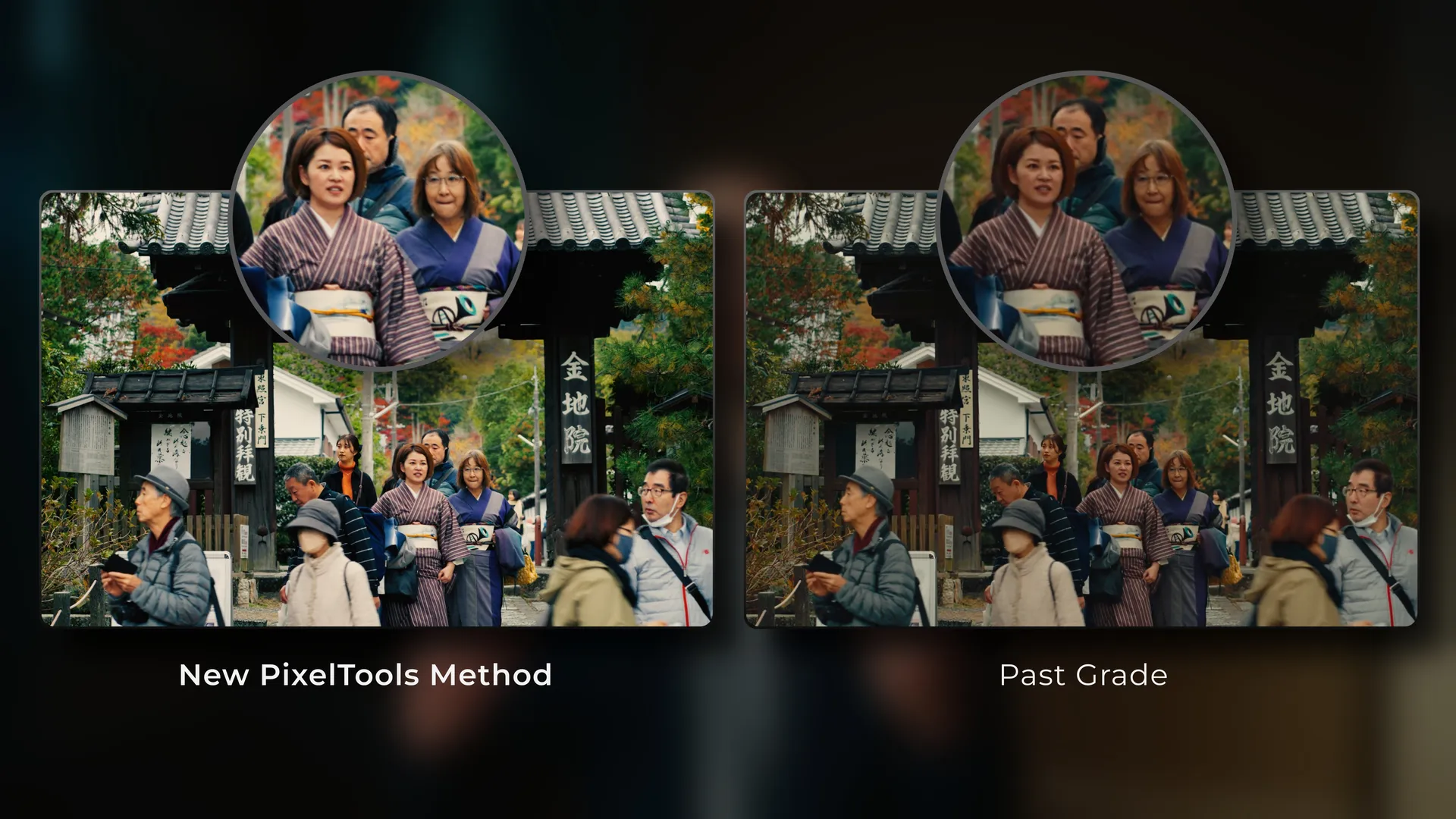
In this video, I break down what sets these tools apart and show exactly how I’ve been using them (alongside other free DCTLs I’ve discovered), to create colour grades that align with my goal of achieving a stylised yet intentional look with good colour separation and true-to-life skin tones without feeling overdone.
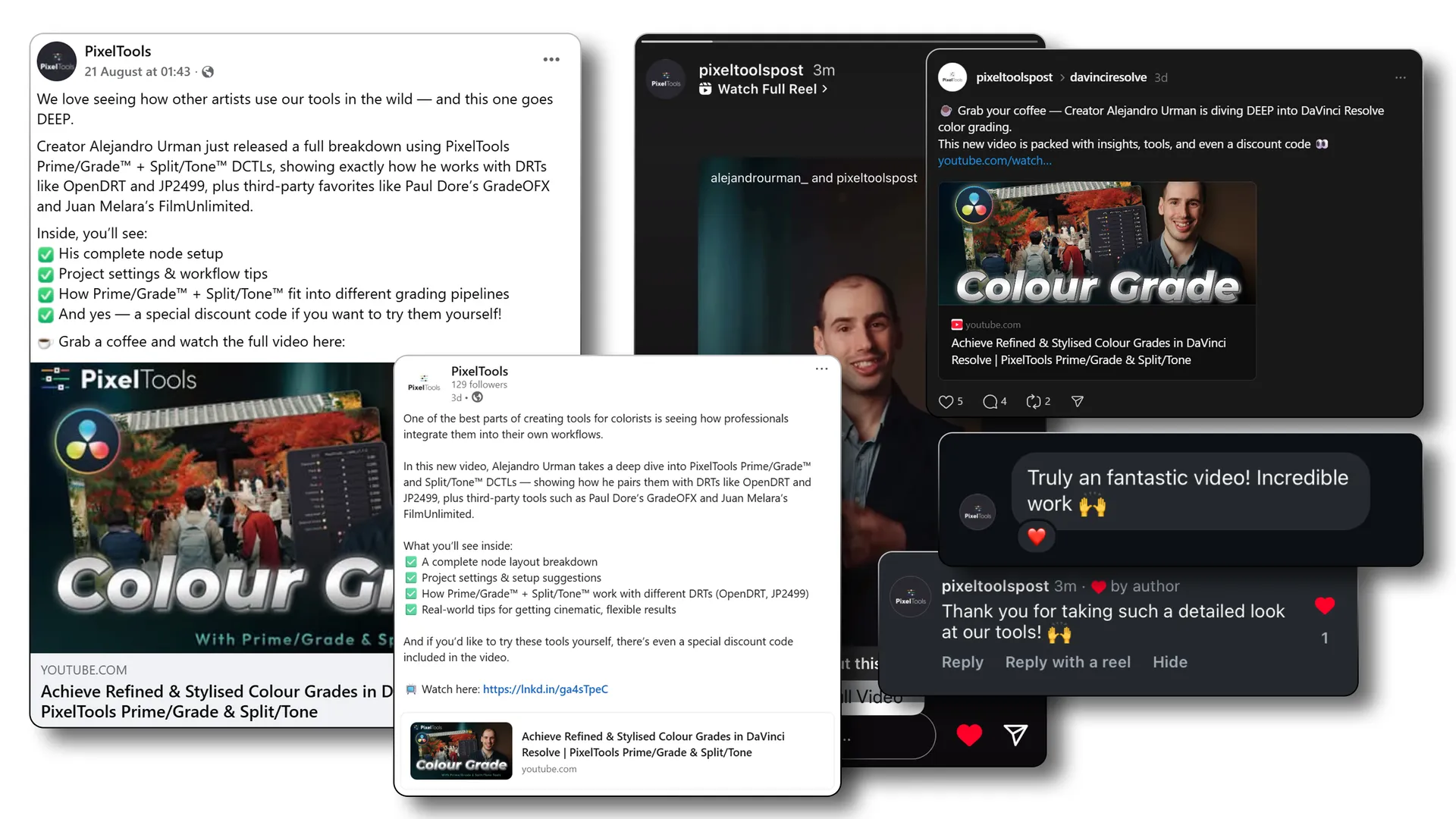
PixelTools Social Media

PixelTools shared the video across social media, accompanied by positive feedback.

Video edited & graded in DaVinci Resolve
Video

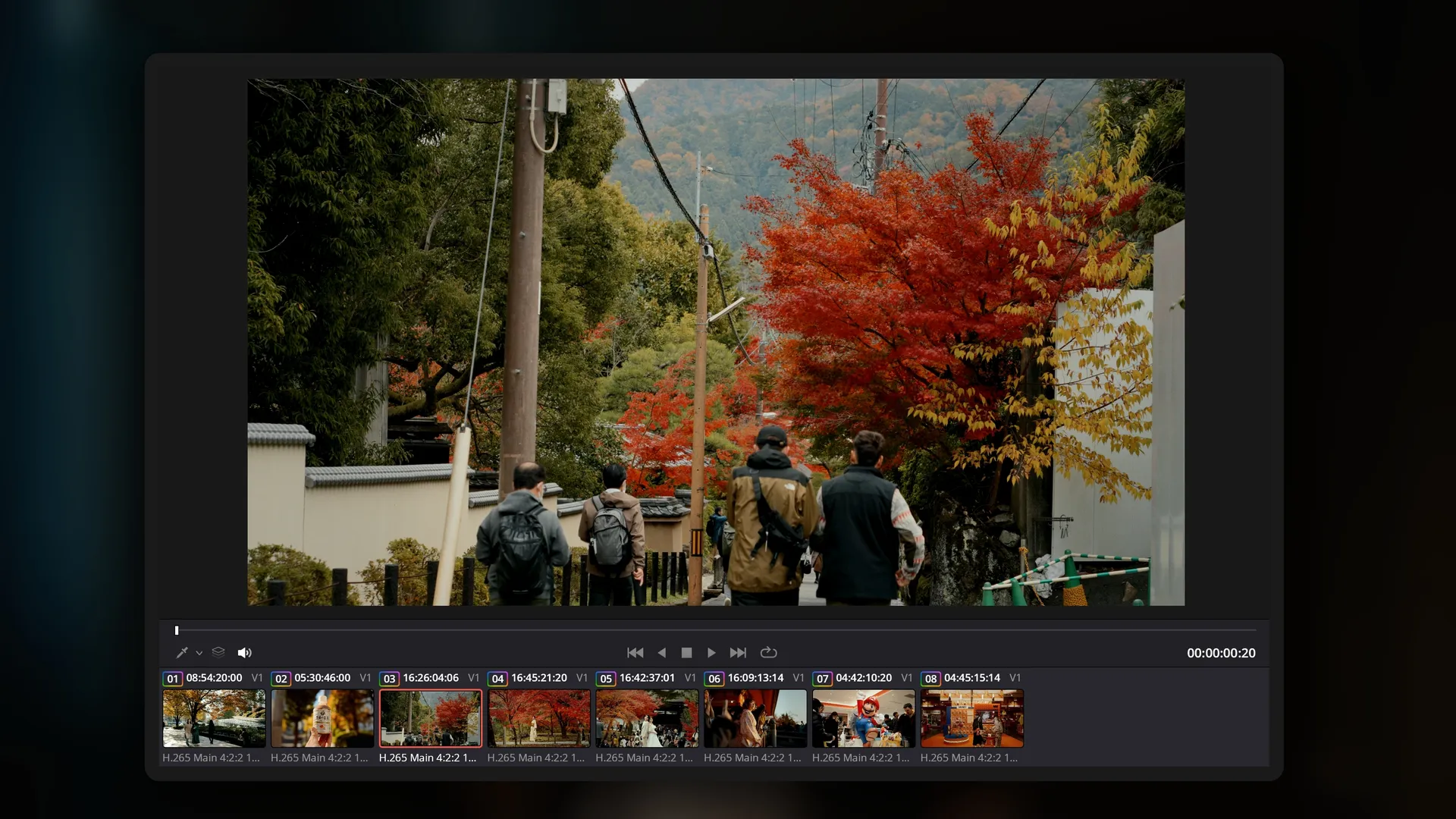
VIDEO STILLS

Partnership ● March 2025

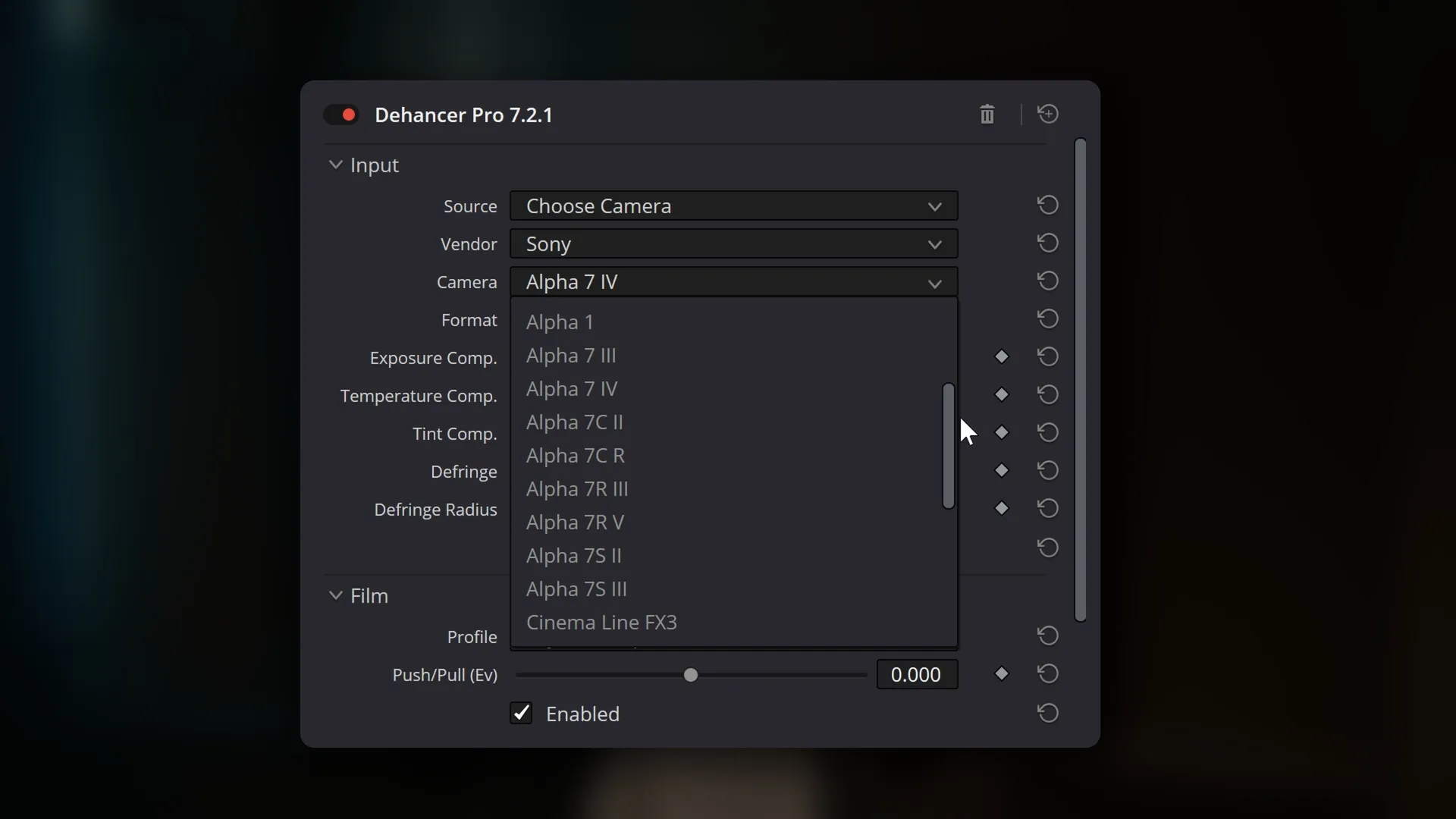
Dehancer

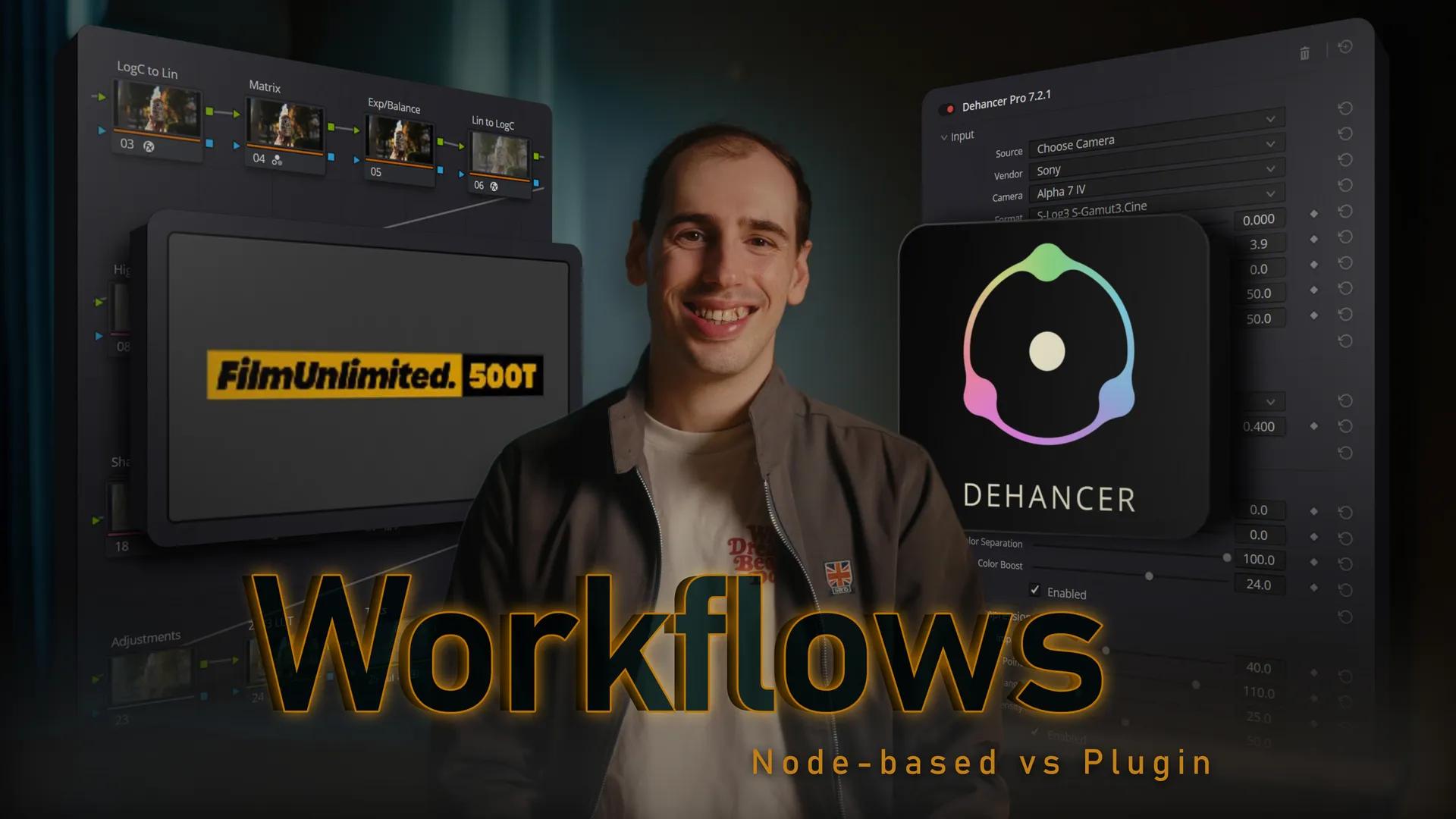
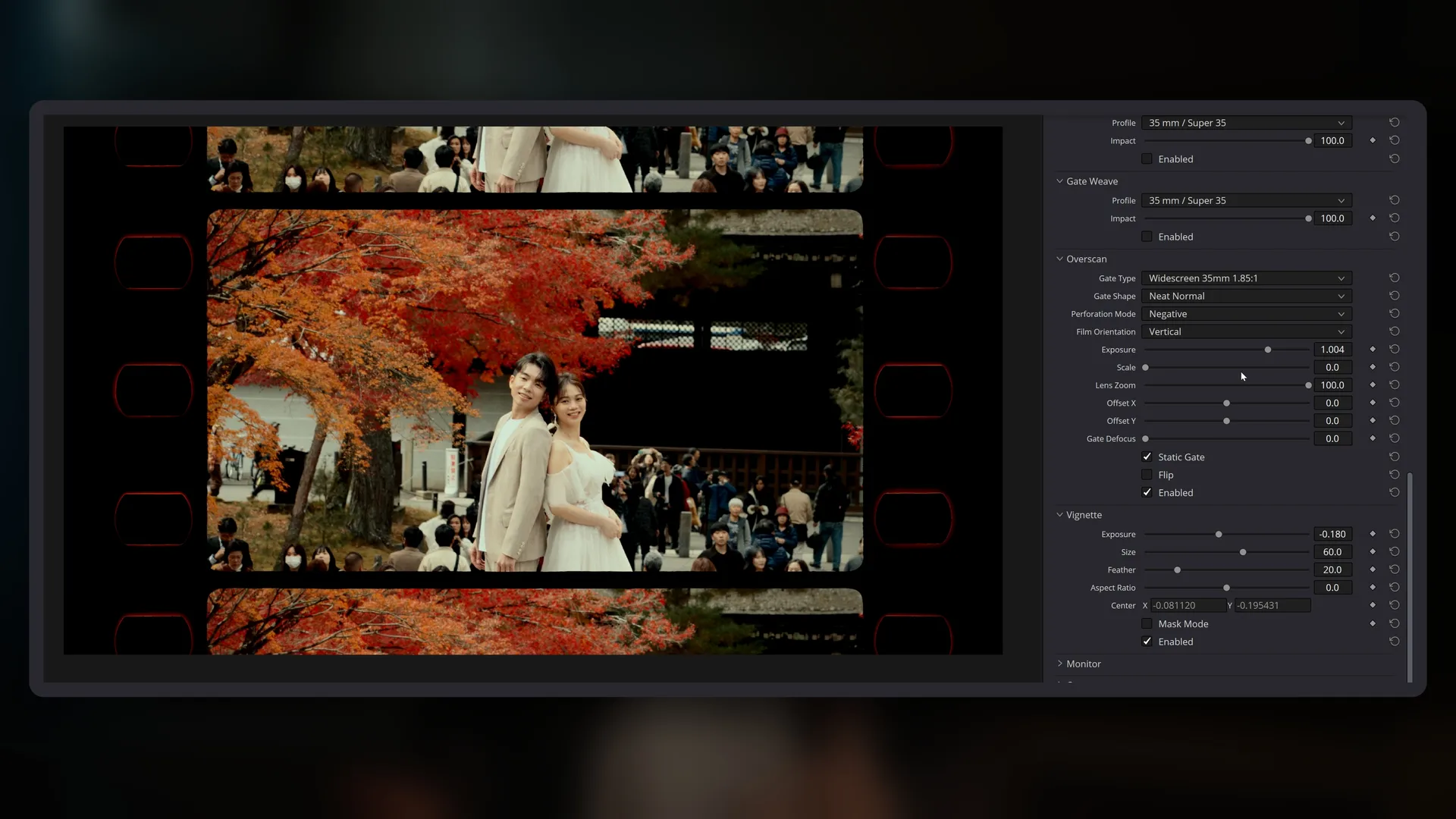
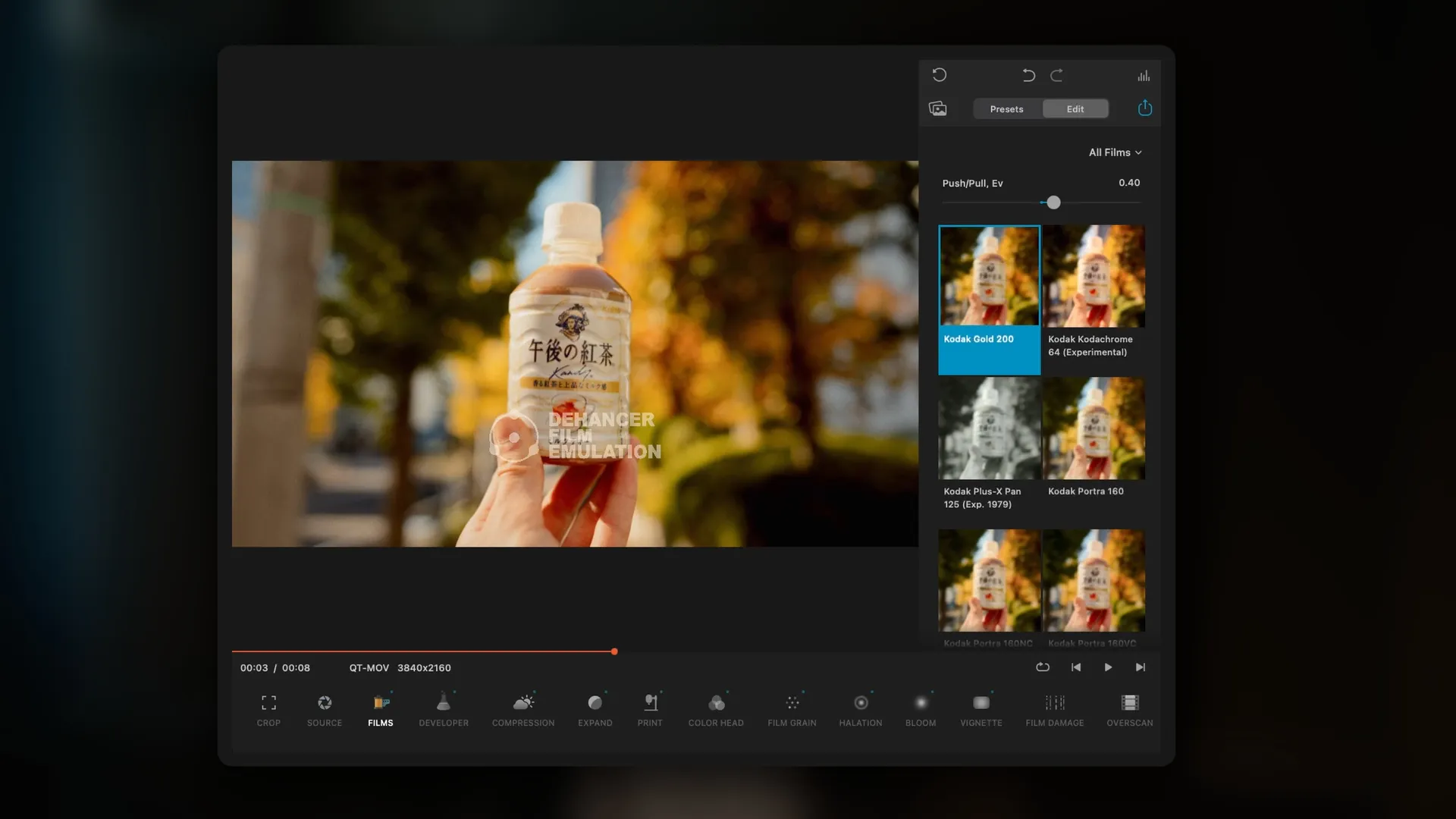
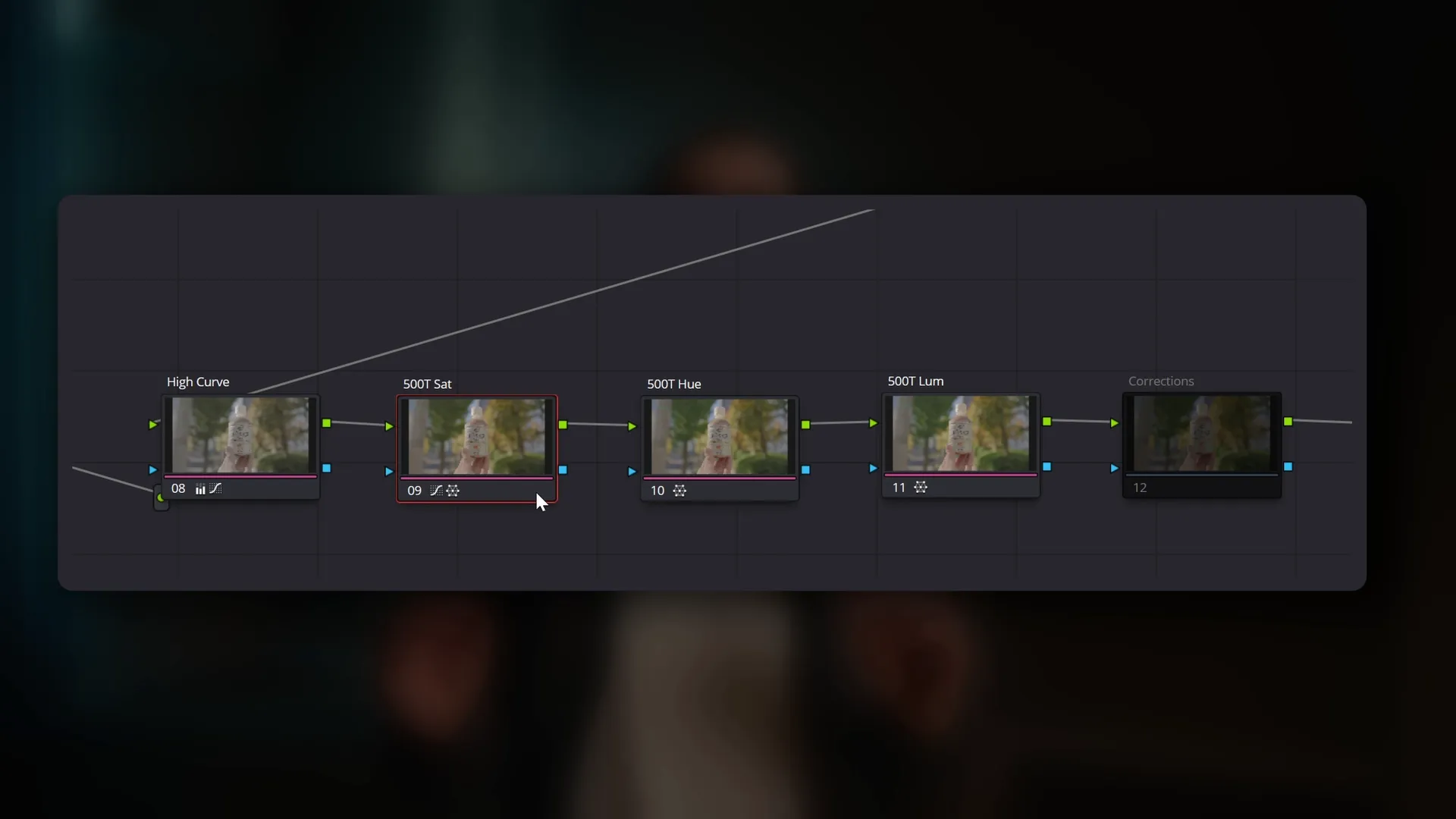
Dehancer Plugin vs Node-based (FilmUnlimited & CinePrint)
Colour Grading Workflows in DaVinci Resolve

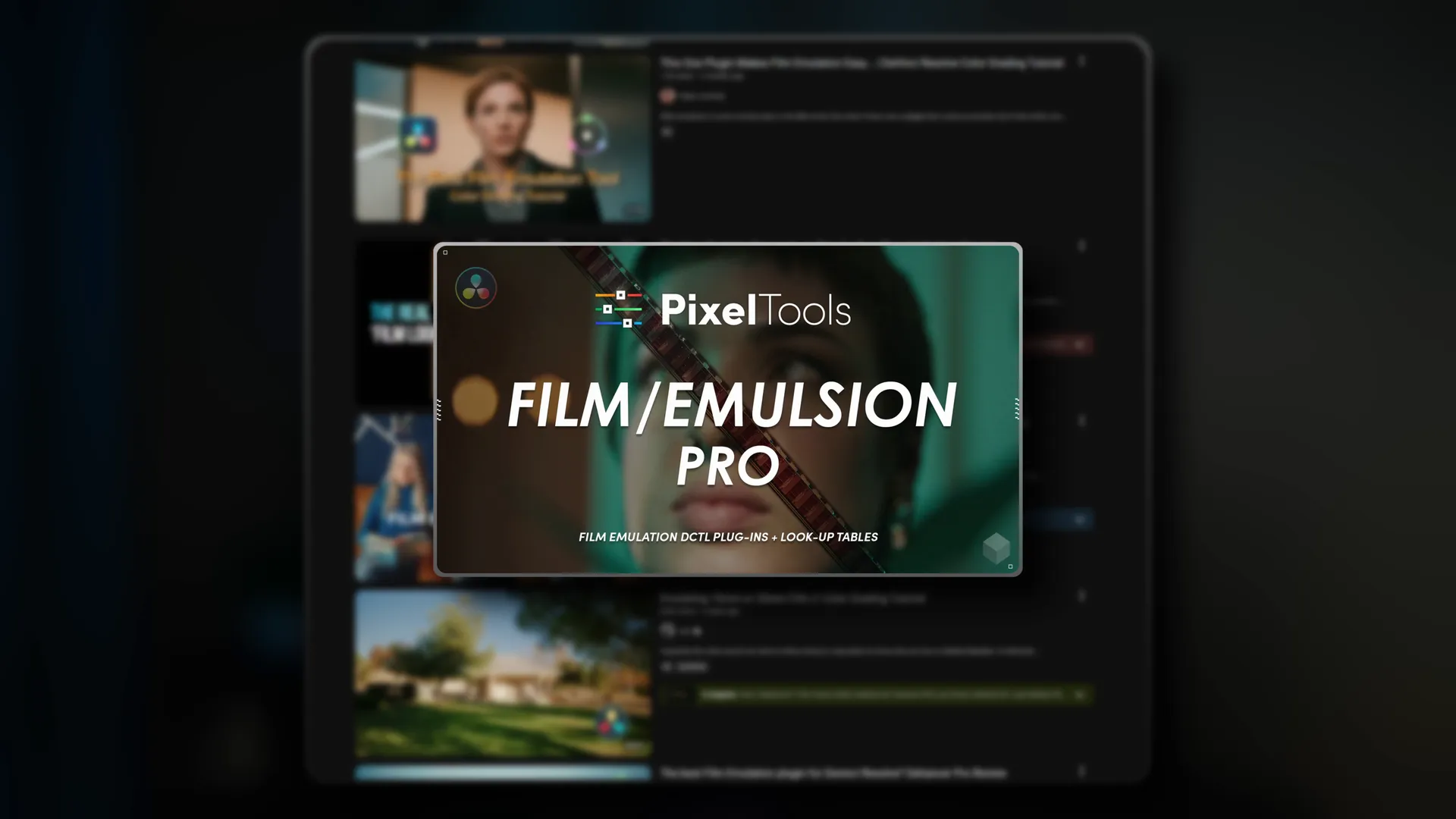
The team at Dehancer reached out to me, to review their plugin, and I wanted to approach this in a way that would be genuinely helpful and offer a fresh perspective for viewers.

This video dives into the workflow itself. How you actually interact with these different color grading systems in a real-world process within DaVinci Resolve. I break down the benefits, limitations, and my personal suggestions on Dehancer’s plugin-based workflow compared to node-based systems like FilmUnlimited and CinePrint.

I focus on how these tools influence your creative process, their ease of use, flexibility, and efficiency in a professional workflow.

My goal is to give viewers a clearer understanding of what it’s like to work with these different color grading systems and ultimately, help them to determine which workflow best suits their projects.

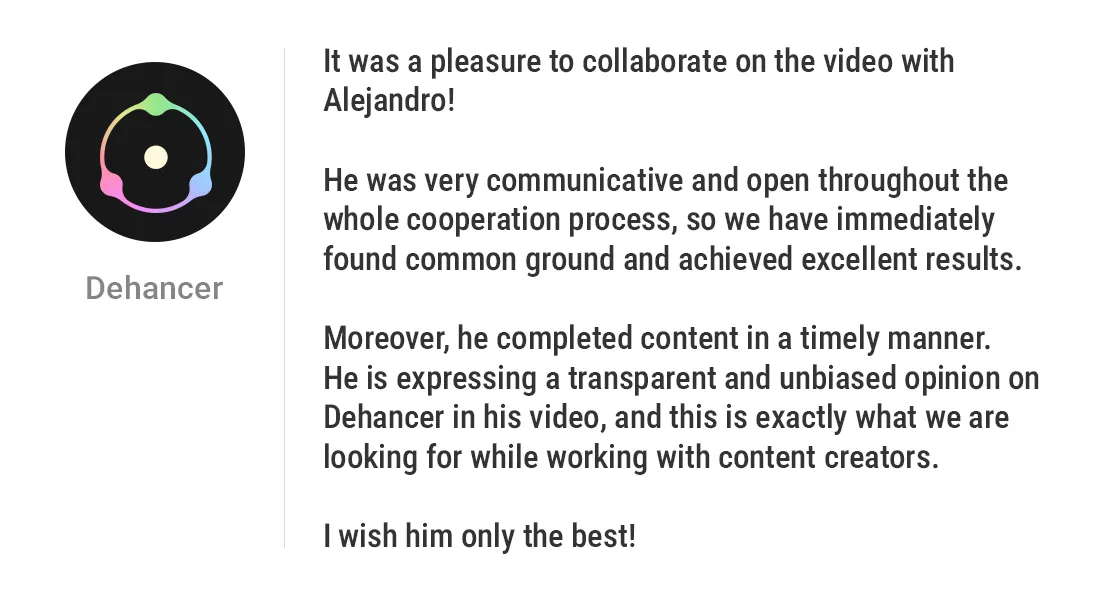
Testimonial from Dehancer

Dehancer shared this thoughtful testimonial with me after the project’s completion.

Video edited & graded in DaVinci Resolve

Video

VIDEO STILLS

Contact

Project in mind?
Let’s Chat.

Let’s collaborate and create work that stands out.

It looks like you’re on mobile.

This section was crafted with a larger screen in mind.

Please head over to your Desktop to get started.

Take The Challenge

69 people have taken the challenge!

Can you edit faster than the B-Roll Fade & Finish PRO System?

First, Download the Challenge DaVinci Resolve Project Archive:

Then, follow these simple steps to Import the Project Archive into DaVinci Resolve:

  1. Download & Unzip: Click the download button above and extract the .zip file to your computer. You will see a folder ending in .dra (DaVinci Resolve Archive).

  2. Open the Project Manager: Launch DaVinci Resolve. If you are already in a project, click the Home icon in the bottom right corner to open the Project Manager.

  3. Restore the Archive: Right-click in any empty gray space within the Project Manager window and select “Restore Project Archive…”

  4. Select the Folder: Select the “Take The Challenge.dra” folder and click Open.

  5. Ready to Edit: The project will appear with all the necessary image assets loaded and ready for you to take the challenge.

Then, Choose Your Method below and Start the Stopwatch when you’re ready –

00:00

Time to Beat

Using the PRO Method: 02:14

Using the FREE Method: 03:18

Using the Native Method: 05:21

Choose Your Method

Editing Challenge Steps

For users using only native DaVinci Resolve tools.

Phase 1: The Foundation

Setting up base footage and initial blur transition.

  1. Setup A-Roll: Drag the A-Roll Image from the Media Pool onto Video Track 1.
  2. Add Adjustment Clip: Open the Effects tab (top-right) and drag an Adjustment Clip onto Video Track 2.
  3. Apply Blur: Drag Gaussian Blur (Resolve FX -> Filters) effect onto the Adjustment Clip at Video Track 2.
  4. Animate Blur: With the playhead at the start of the Adjustment Clip, keyframe Blur Strength at 0.000 in the Inspector. Move playhead forward 10 frames and keyframe it at 0.600.

Phase 2: Background Dim & B-Roll Setup

Creating dim transition and preparing first B-Roll.

  1. Create Dim: Drag a Solid Color (Generators category in Effects tab) onto Video Track 3.
  2. Animate Dim: With the playhead at the start of the Solid Color, keyframe Opacity at 0.00 in Inspector. Move playhead forward 10 frames and keyframe it at 40.00.
  3. Place First B-Roll: Drag your first B-Roll Image from the Media Pool onto Video Track 4.
  4. Crop B-Roll: Use the Cropping sliders in the Inspector or the Crop option in the dropdown menu located under the Viewer, to crop to the designated boundary.
  5. Scale & Position B-Roll: Use the Zoom & Position sliders in the Inspector or the Transform option in the dropdown menu located under the Viewer, to scale and center the image.

Phase 3: Polish & Movement

Adding styling and entrance fade animation.

  1. Add Border: Drag the Outer Stroke effect (Effects category in Effects tab) onto the B-Roll image. Set Border Edge to ‘Circle’ and the color to light grey (e.g. #8a8a8a).
  2. Add Subtle Drop Shadow: In the Inspector’s Shadow section of the Outer Stroke effect, set Softness to 0.0112, Light Distance to 0.96, and Blend to 0.75.
  3. Set Animation Keyframes: Ensure the playhead is already forward 10 frames. In the Video tab of the Inspector, set keyframes for both Position and Opacity (under Composite) without changing the values.
  4. Entrance Animation: Move the playhead to the start of the B-Roll clip. Adjust the Y Position in Inspector down by about 100.000 and then set the Opacity (under Composite) to 0.00.

Phase 4: Final Adjustments & Batch

Final framing and batch applying effects.

  1. Extend Timeline: Add subsequent B-Roll Images from Media Pool to Video Track 4. Extend Video Tracks 1, 2 & 3 to match the total length of your B-Roll sequence.
  2. Final Crop, Scale & Position: For each remaining B-Roll image, repeat Steps 8 and 9 to ensure individual cropping and centering are correct.
  3. Batch Apply Attributes: Select the first B-Roll image and press Ctrl + C. Select all remaining B-Roll images and press Alt + V to open the Paste Attributes panel. Check only the Fusion Effects box and click Apply.

Editing Challenge Steps

For users utilising the free version of the B-Roll Fade & Finish tool.

Phase 1: The Foundation

Setting up base footage and A-Roll tool.

  1. Setup A-Roll: Drag the A-Roll Image from the Media Pool onto Video Track 1.
  2. Add Adjustment Clip: Open the Effects tab (top-right) and drag an Adjustment Clip onto Video Track 2.
  3. Apply A-Roll Effect: Drag and drop the ‘A-Roll Blur & Dim’ effect onto the Adjustment Clip on Video Track 2.

Phase 2: B-Roll Setup & Framing

Applying B-Roll tool and framing.

  1. Place First B-Roll: Drag your first B-Roll Image from the Media Pool onto Video Track 3.
  2. Apply B-Roll Effect: Drag and drop the ‘B-Roll Fade & Finish – FO’ effect onto the B-Roll Image on Video Track 3.
  3. Move Playhead: Move the Playhead forward 10 frames. In the dropdown menu located under the Viewer, select the Fusion Overlay option.
  4. Crop, Scale & Position: From the Starting Position, use the Outer Frame and Left Point to crop the B-Roll. Use the Inner Frame to scale the B-Roll image and the Right Point to center it.

Phase 3: Animation & Extension

Setting keyframes and extending timeline.

  1. Set Keyframe: With the Playhead still at 10 frames, click the keyframe icon next to the ‘Center’ parameter (under Scale & Positioning) in the Inspector.
  2. Animate Position: Move the Playhead to the start of the B-Roll clip. In the Inspector, adjust the Y Center slider down by approximately 100.000.
  3. Extend Timeline: Add subsequent B-Roll Images from Media Pool to Video Track 3. Then extend the A-Roll (Video Track 1) and Adjustment Clip (Video Track 2) to match the total length of your B-Roll sequence.

Phase 4: Batch & Final Adjustments

Batch applying effects and final framing.

  1. Apply B-Roll Effect to Second B-Roll: Drag the B-Roll Fade & Finish – FO effect from the Effects tab onto the second B-Roll image and set the Fade In Duration to 0.0 in the Inspector.
  2. Batch Apply Attributes: Select the second B-Roll image and press Ctrl + C. Select all remaining B-Roll images and press Alt + V to open the Paste Attributes panel. Check only the Fusion Effects box and click Apply.
  3. Final Crop, Scale & Position: Repeat Step 7 for each remaining B-Roll image to ensure individual cropping and centering are correct.

Editing Challenge Steps

For users utilising the B-Roll Fade & Finish PRO System.

Phase 1: The Foundation

Setting up base footage and PRO A-Roll tool.

  1. Setup A-Roll: Drag the A-Roll Image from the Media Pool onto Video Track 1.
  2. Add Adjustment Clip: Open the Effects tab (top-right), go to the Effects category, and drag an Adjustment Clip onto Video Track 2.
  3. Apply A-Roll Effect: Drag and drop the ‘A-Roll Blur & Dim PRO’ effect onto the Adjustment Clip on Video Track 2.

Phase 2: B-Roll Setup & Framing

Applying PRO B-Roll tool and framing.

  1. Place First B-Roll: Drag your first B-Roll Image from the Media Pool onto Video Track 3.
  2. Apply B-Roll Effect: Drag and drop the ‘B-Roll Fade & Finish PRO’ effect directly onto the B-Roll Image on Video Track 3.
  3. Move Playhead: Move the Playhead forward 10 frames. In the dropdown menu located under the Viewer, select the Fusion Overlay option.
  4. Crop, Scale & Position: Use the Diagonal Points to crop the B-Roll to the designated boundary. Use the Outer Frame to scale the image and the Center Point to position it within the composition.

Phase 3: Animation & Extension

Setting movement and extending timeline.

  1. Configure Animation: In the Inspector panel, go to the ‘Fade & Animation’ section and set the In Animation parameter to ‘Up’.
  2. Extend Timeline: Add subsequent B-Roll Images from Media Pool to Video Track 3. Then extend the A-Roll (Video Track 1) and Adjustment Clip (Video Track 2) to match the total length of your B-Roll sequence.

Phase 4: Batch & Final Adjustments

Batch applying effects and final framing.

  1. Apply B-Roll Effect to Second B-Roll: Drag the B-Roll Fade & Finish PRO effect from the Effects tab onto the second B-Roll image and set the Fade In Duration to Static in the Inspector.
  2. Batch Apply Attributes: Select the second B-Roll image and press Ctrl + C. Select all remaining B-Roll images and press Alt + V to open the Paste Attributes panel. Check only the Fusion Effects box and click Apply.
  3. Final Crop, Scale & Position: Repeat Step 7 for each remaining B-Roll image to ensure individual cropping and centering are correct.